
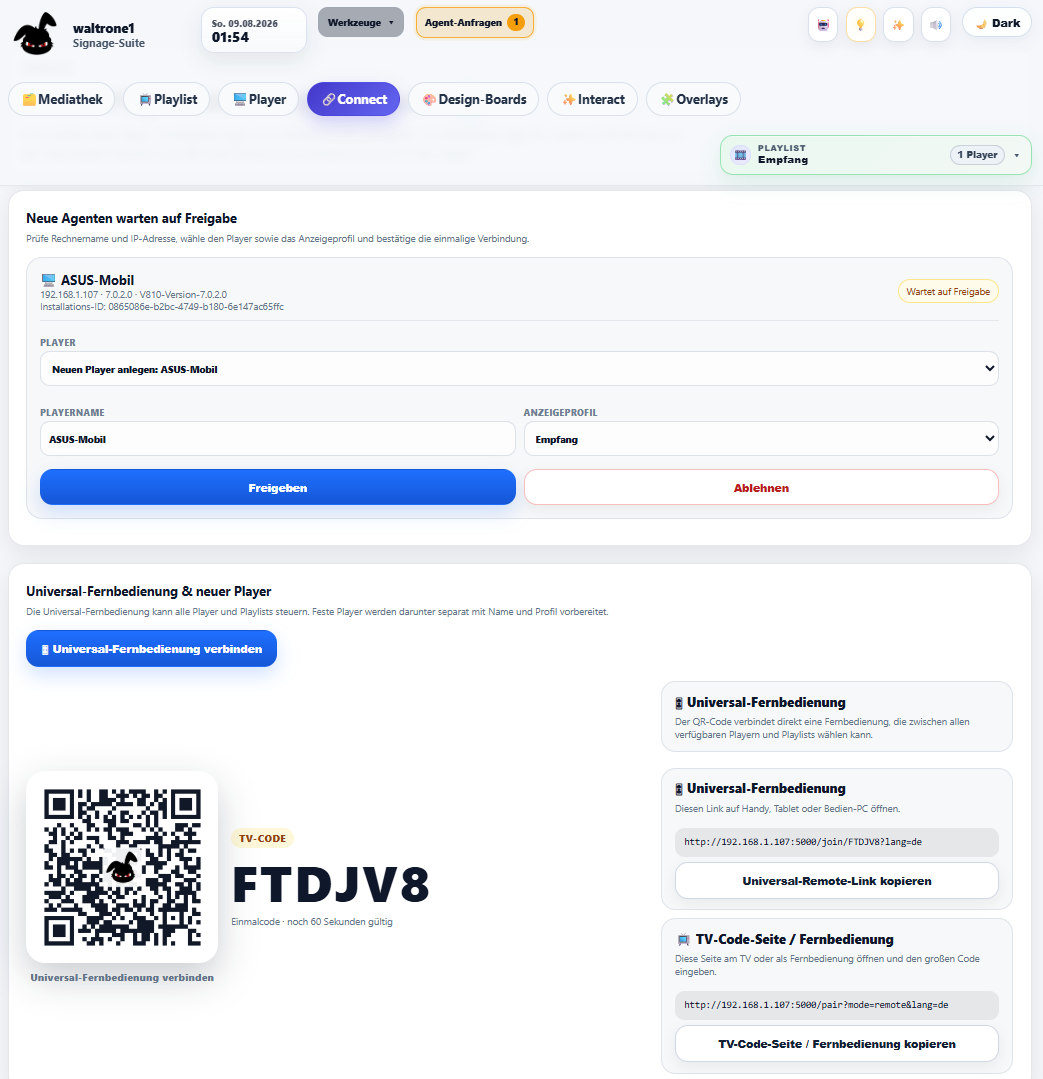
1. Approve it on the server
While the request is open, the Agent waits for your confirmation. Approval is normally needed only once unless the connection is deliberately reset.
Connect an additional Windows PC to the WALTRONE Server and control its display centrally.
Normally, the Agent searches for an active WALTRONE Server on the local network. Once found, an approval request appears under Connect.
The target PC is the computer connected to the additional display.
The main PC must be reachable. Both devices should be on the same local network.
The new Agent request appears automatically after the server is found.
Choose the player name and display profile, then click Approve.
The Agent should now appear online. Assign the desired playlist to it.
While the request is open, the Agent waits for your confirmation. Approval is normally needed only once unless the connection is deliberately reset.
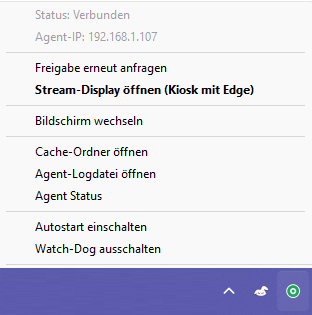
On the Agent PC, the tray menu shows the connection status and Agent IP. It also provides quick access to the player, screen switching, cache and log files.
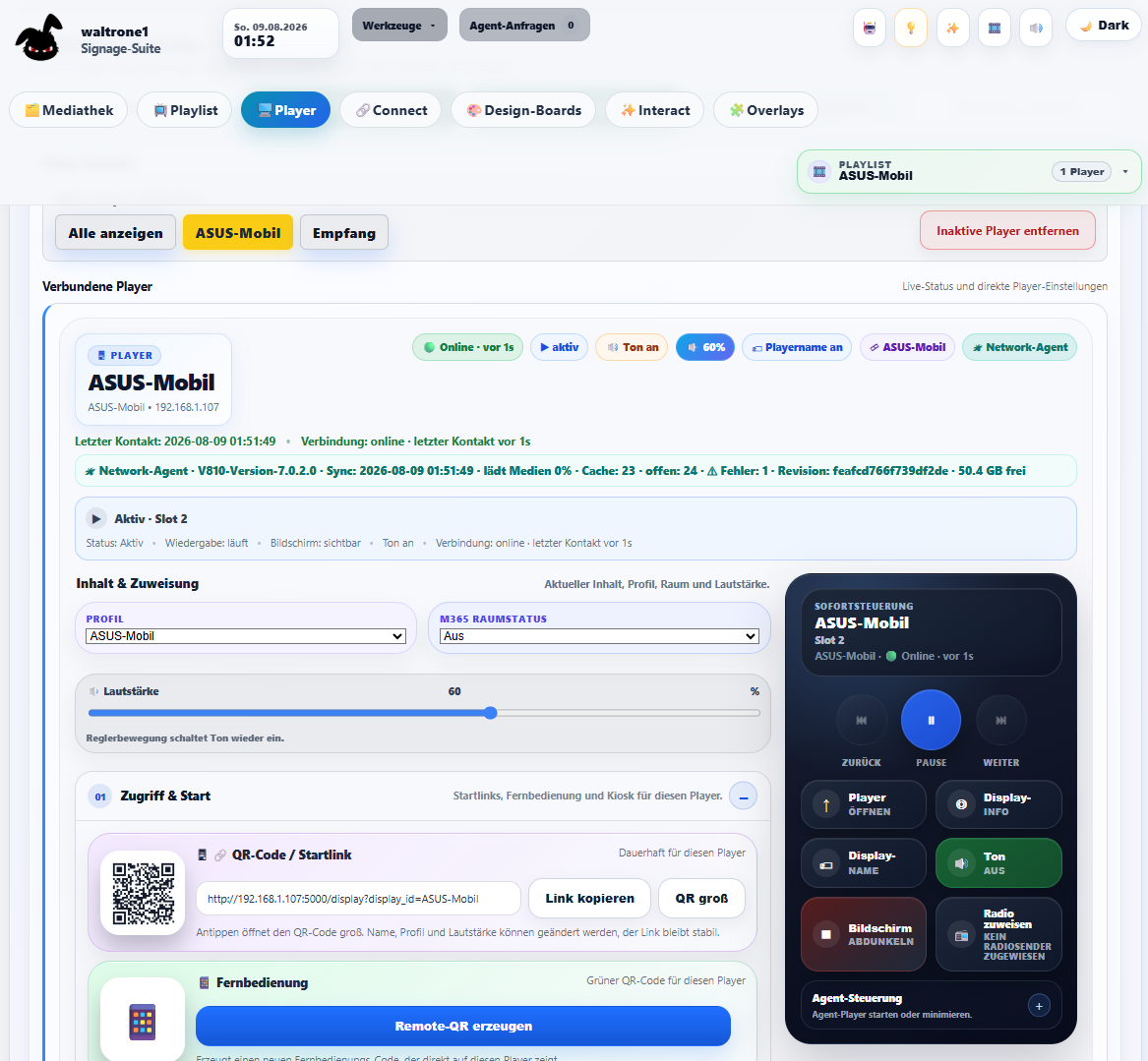
Back on the server, open Player. The Agent should be marked as a Network Agent and show an online status. You can also see synchronization and cache information there.
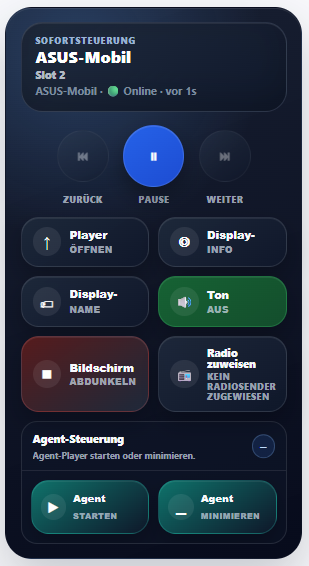
The server can start or minimize the Agent player and control playback, sound and the screen directly.