
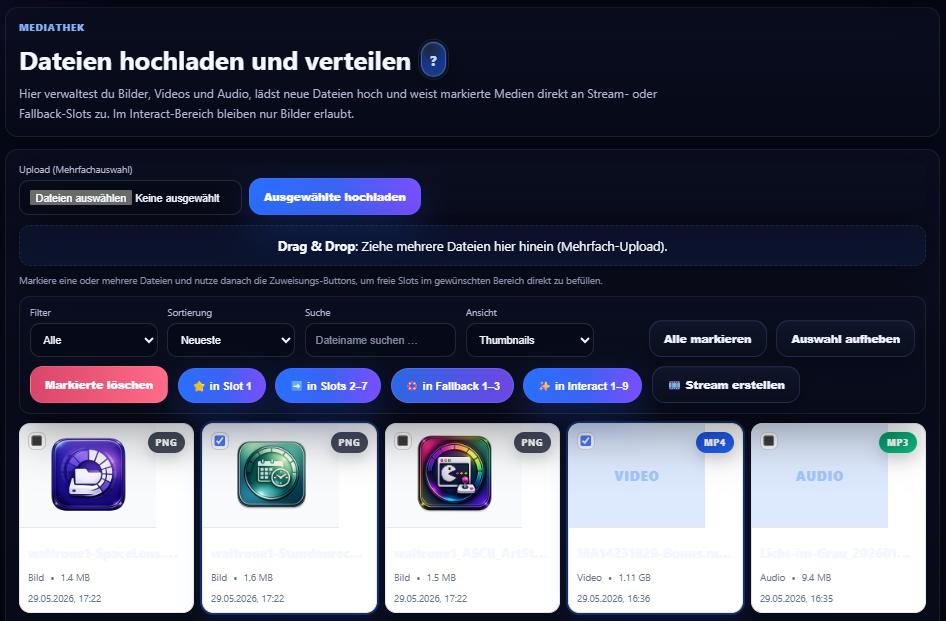
Thumbnails make content easier to find
The tile view helps you recognize content quickly. Use clear file names, for example Reception_Welcome.jpg instead of IMG_4837.jpg.
Upload images, videos and other media, find them again quickly, and prepare them for playback.
The Media Library is your central content workspace. Upload files, organize them in virtual folders and subfolders, use colors, favorites and search, and then assign content to Playlist, Fallback, Interact or Design Boards.
Media Library → Upload file → Check content → Assign it where needed
The tile view helps you recognize content quickly. Use clear file names, for example Reception_Welcome.jpg instead of IMG_4837.jpg.
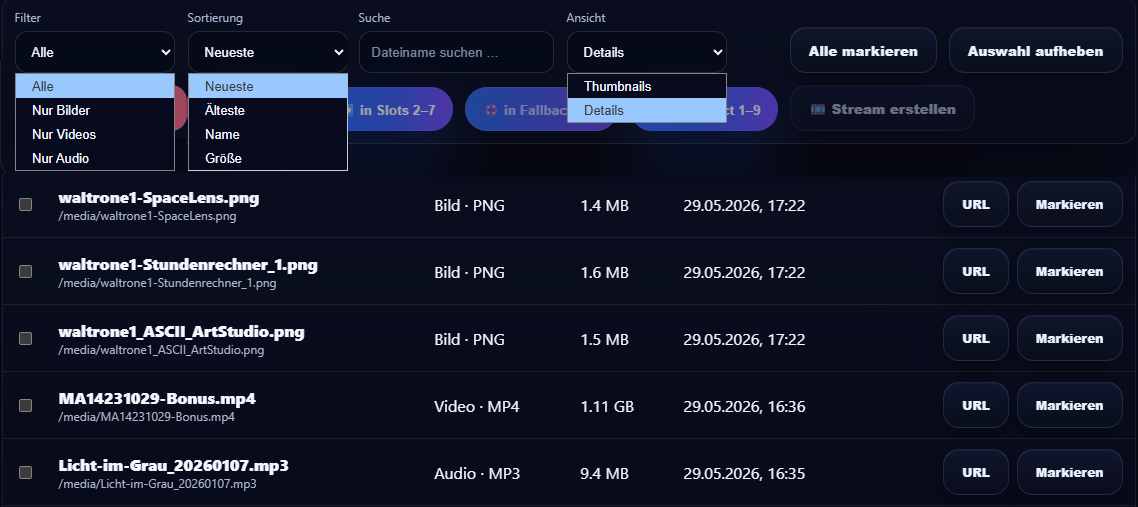
The detail view shows additional information about the file. Image-size hints help you judge whether an image is suitable for the intended display.
Remove moves media to Trash first. Trash is a protected standard folder and can use a configurable retention period; the default is 30 days. Emptying Trash permanently deletes the files from disk.
This also gives you a safer workflow when cleaning up larger projects.
Choose an image, video or another supported file.
Make sure the file is displayed correctly.
Open Playlist and select the content for a slot.
Select several images and combine them in one layout.
If you want to show several images at the same time, you can create a Design Board from selected images. Up to 24 suitable images can be transferred. The board is then edited in Design Boards and is only assigned to a slot when you choose to do so.
Open Design Board guide