
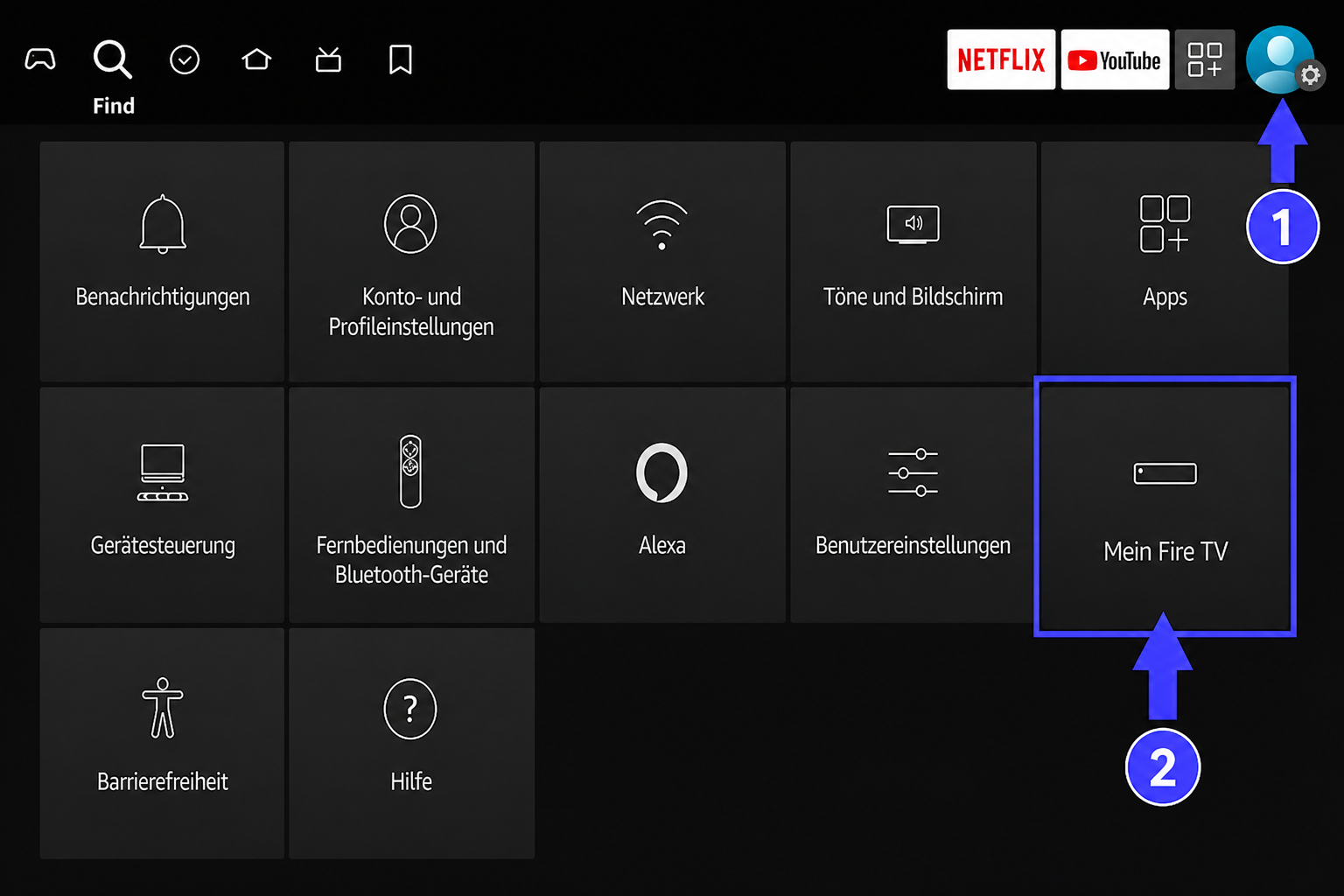
Step 1
Open settings and select “My Fire TV”
On the Fire TV home screen, open the gear icon in the upper right corner and then select the My Fire TV section in the settings.
Install the WALTRONE Signage Player and prepare Fire OS step by step.
This guide describes how to prepare a Fire TV Stick for the WALTRONE Signage Player. For production digital signage installations, the selected player should be tested carefully, especially for YouTube, network reliability and continuous operation.
To install the WALTRONE Signage Player on a Fire TV Stick, installation from unknown sources or unknown apps must be allowed. The exact wording can vary slightly depending on the Fire OS version.
Only enable this option for the intended installation and only if the APK comes from a trusted source.
Use the button below to download the APK file directly from this documentation. Open the link directly on the Fire TV Stick, preferably through the Downloader app. Alternatively, download the file and transfer it afterwards.
Filename: waltrone.apk
Short address for Downloader: https://waltrone.de/docs/ft/waltrone.apk
Perform the following steps with the Fire TV remote. The screenshots show the path through “My Fire TV” to the developer options.
On the Fire TV home screen, open the gear icon in the upper right corner and then select the My Fire TV section in the settings.
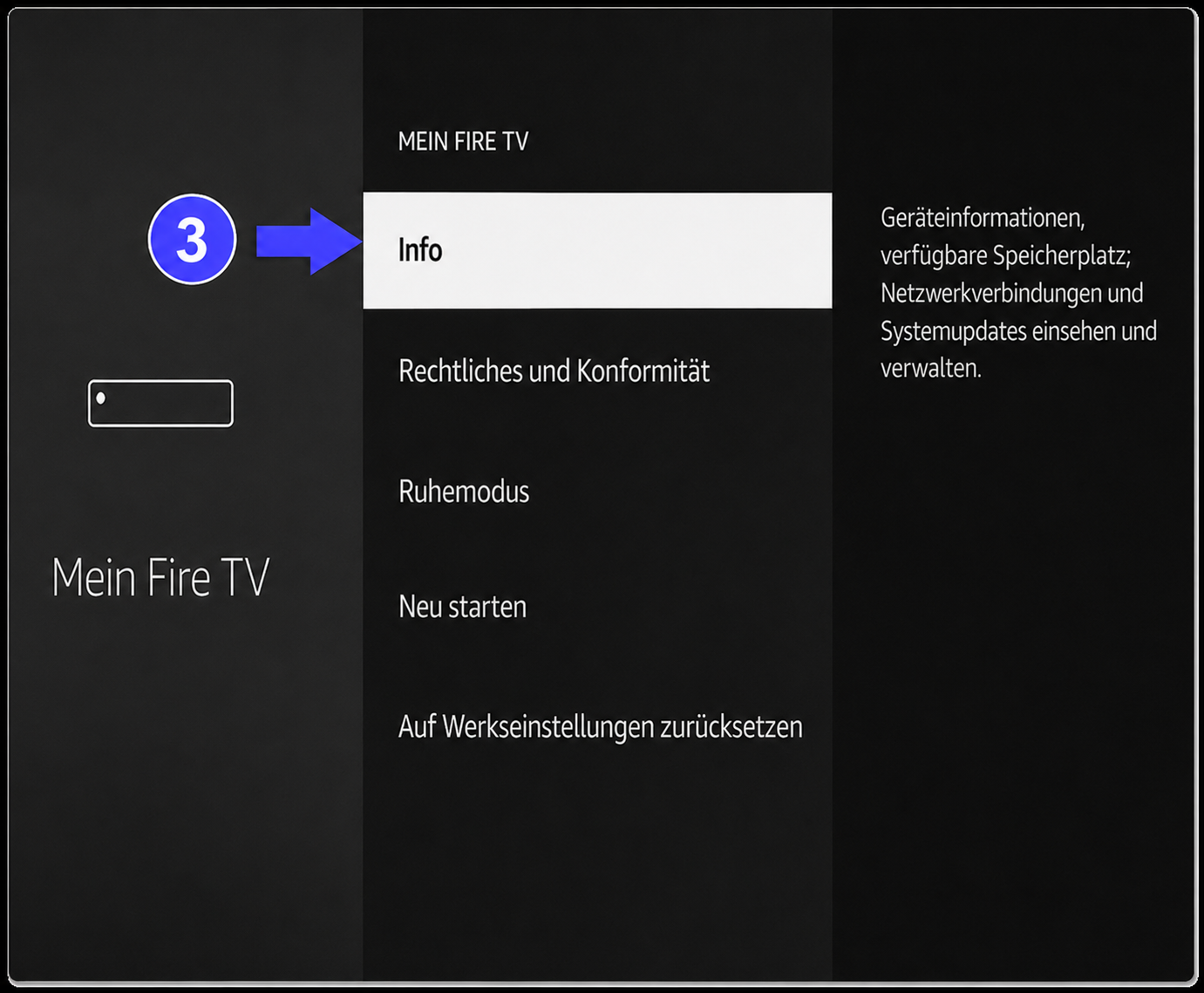
In My Fire TV, open the About menu item.
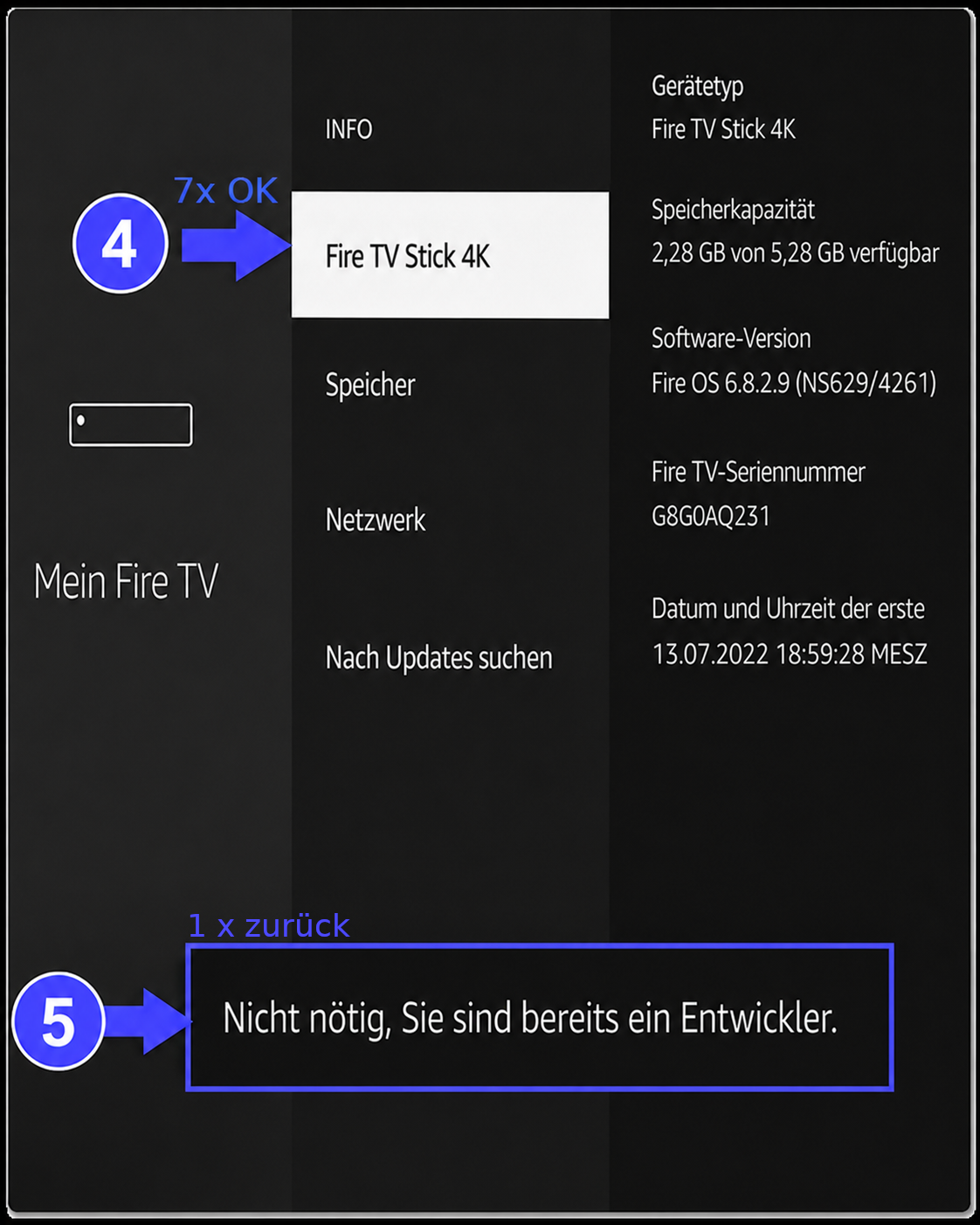
Highlight the device name, for example Fire TV Stick 4K, and press OK 7 times. Once the message appears, developer options are unlocked. Then press Back once.
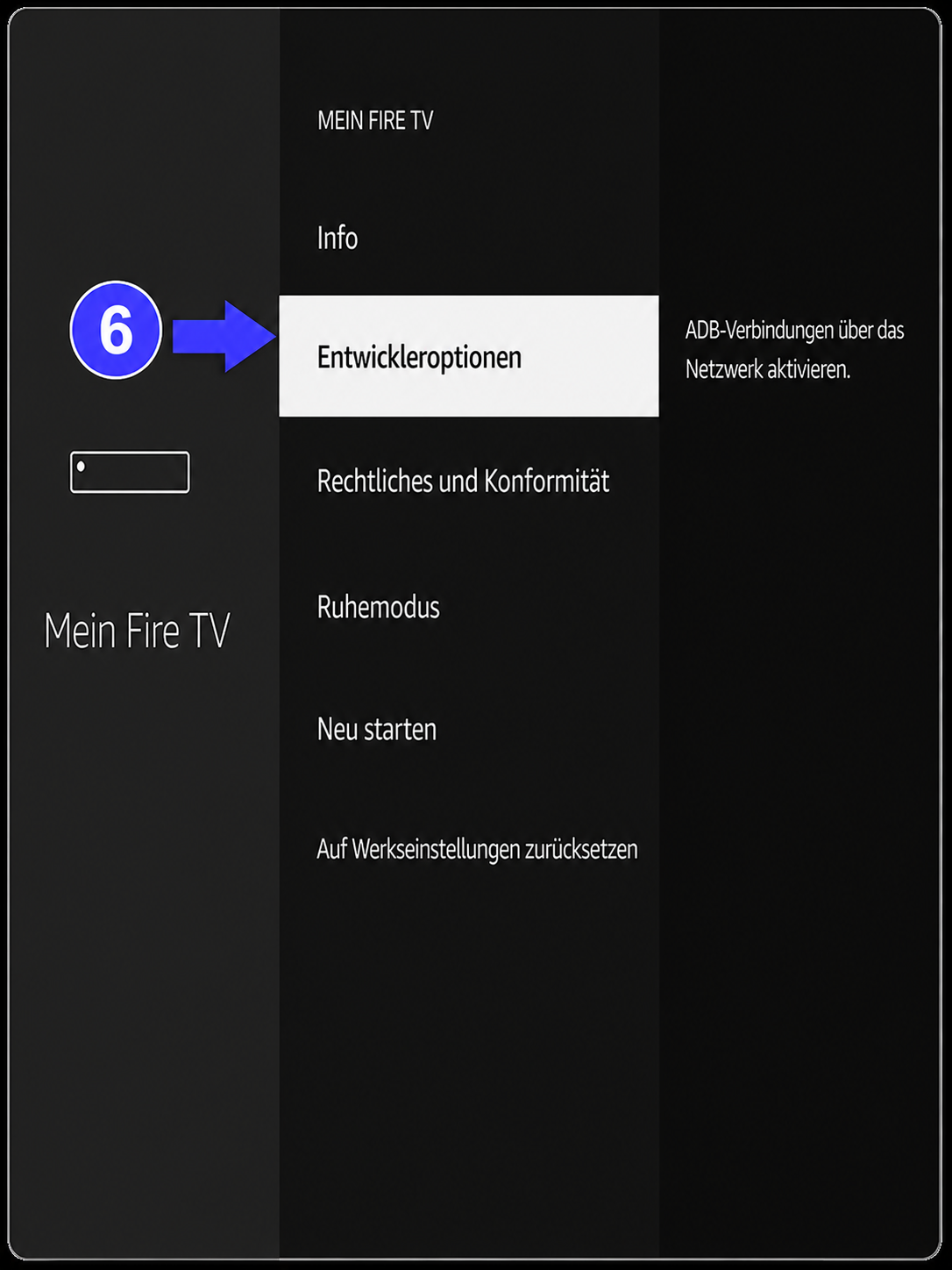
Open the newly visible Developer options menu item.
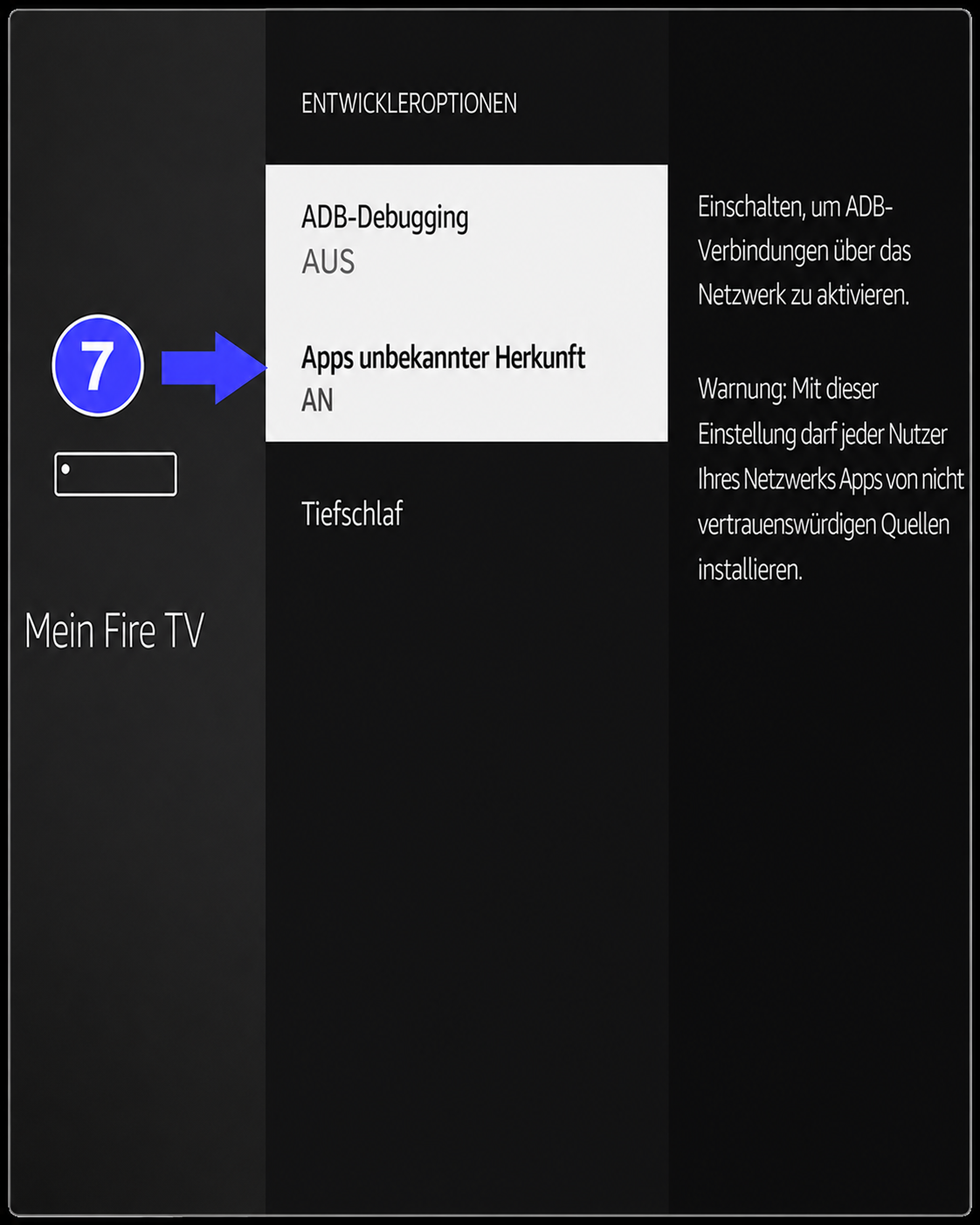
Enable Apps from unknown sources or Install unknown apps. ADB debugging is not required for normal installation and can remain turned off unless it is explicitly needed.

Then download the WALTRONE Signage Player using the download button above and start the installation on the Fire TV Stick.
On Fire TV, installing through the Downloader app is usually the easiest option. You do not need to copy a long file to a USB stick, and after setup you do not need a laptop with ADB.
Use this short APK address in Downloader: https://waltrone.de/docs/ft/waltrone.apk
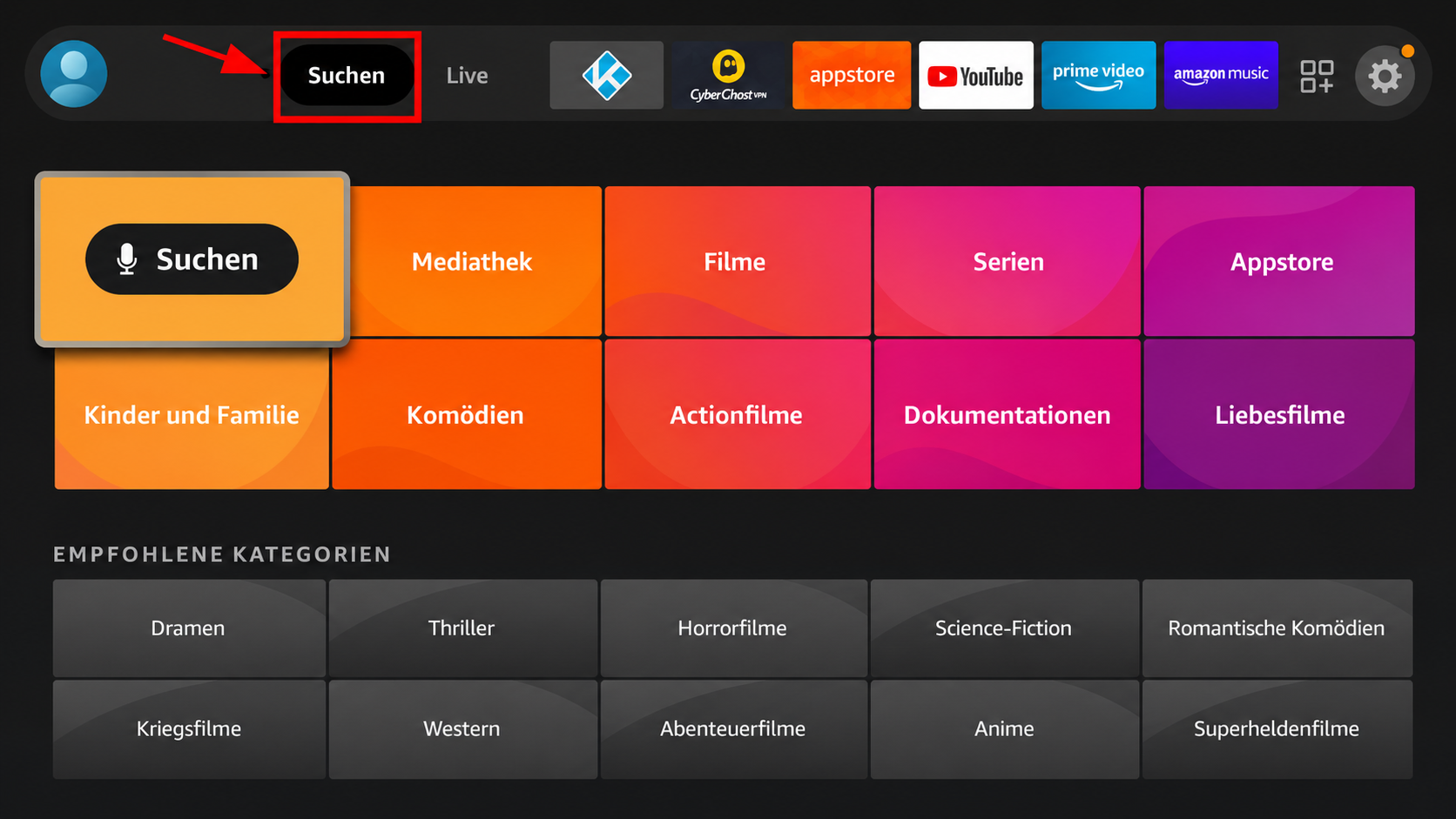
On the Fire TV home screen, open Search. This lets you install the Downloader app without a USB stick or ADB.
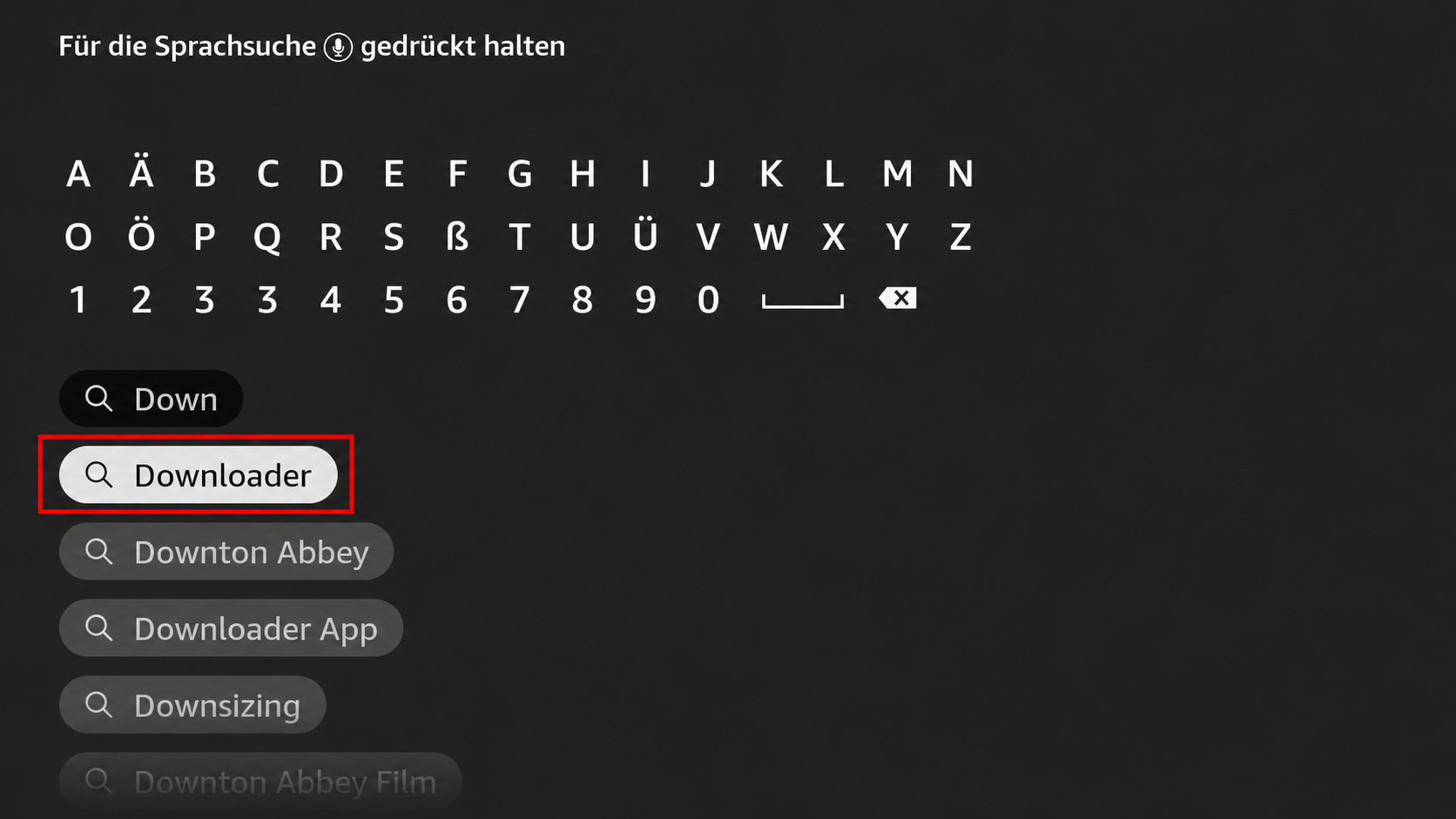
Enter Downloader and select the matching search suggestion.
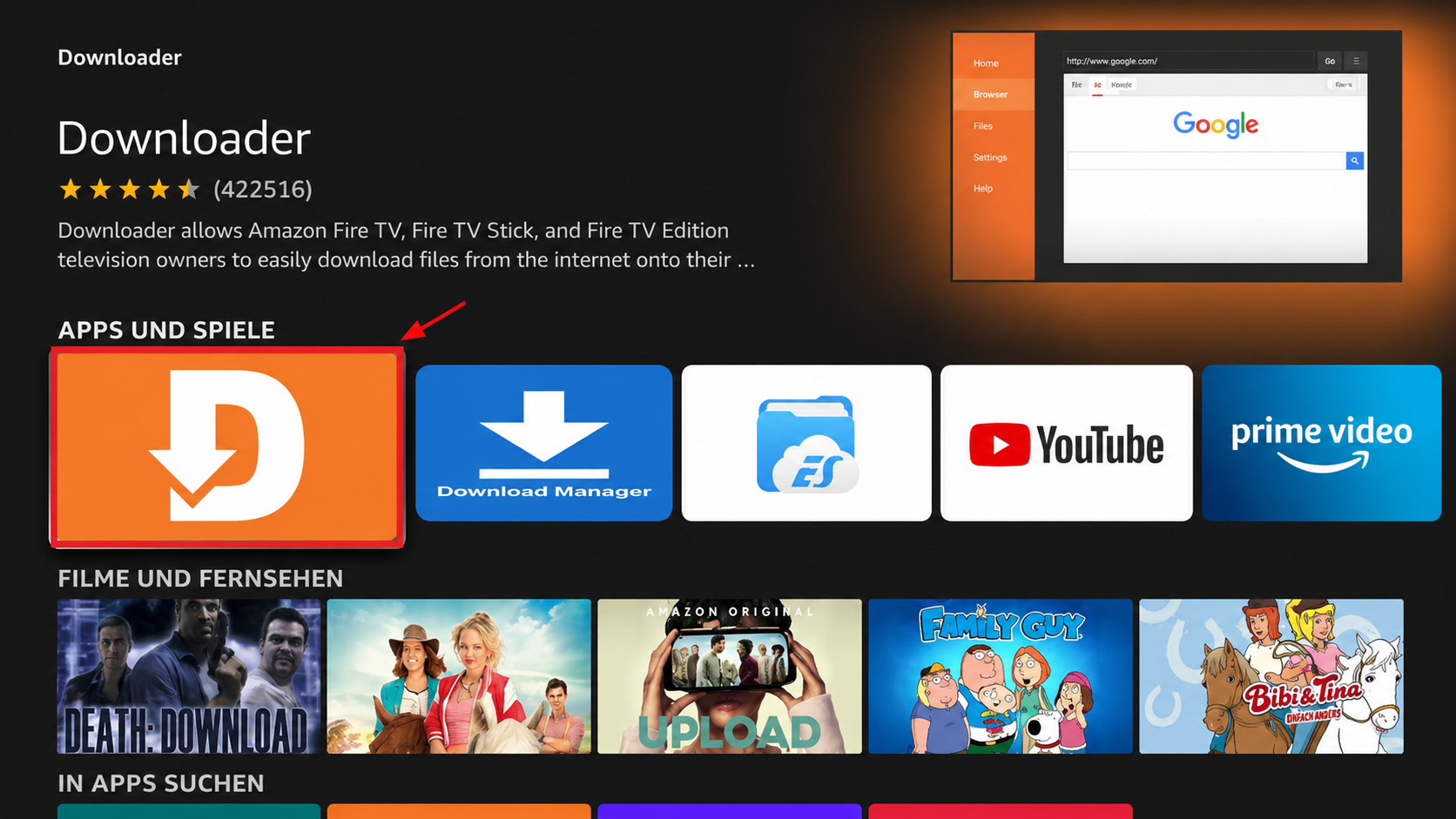
In the app results, choose the orange Downloader app. Make sure you select the app by AFTVnews.
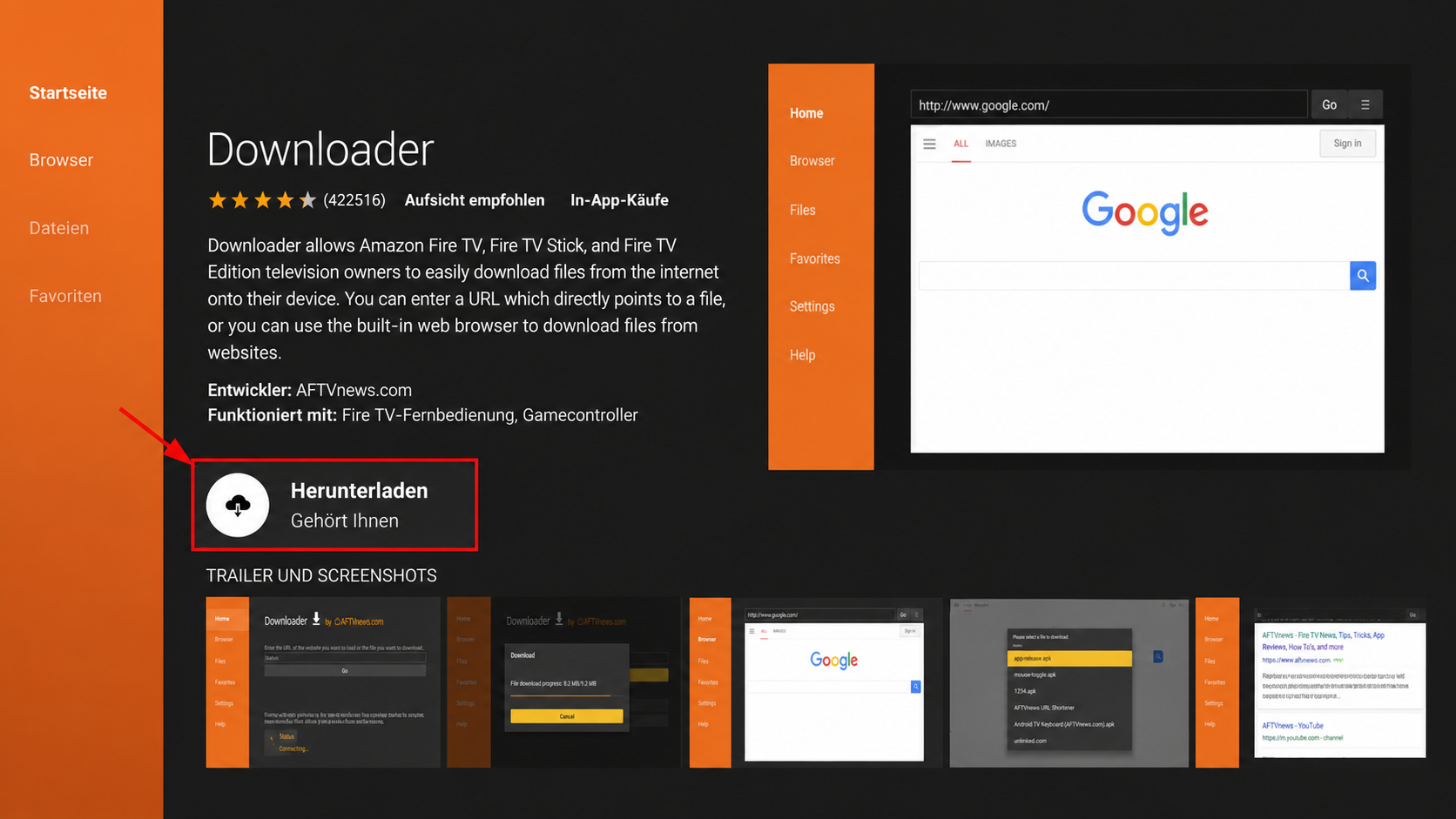
Select Download to install the Downloader app on the Fire TV Stick.
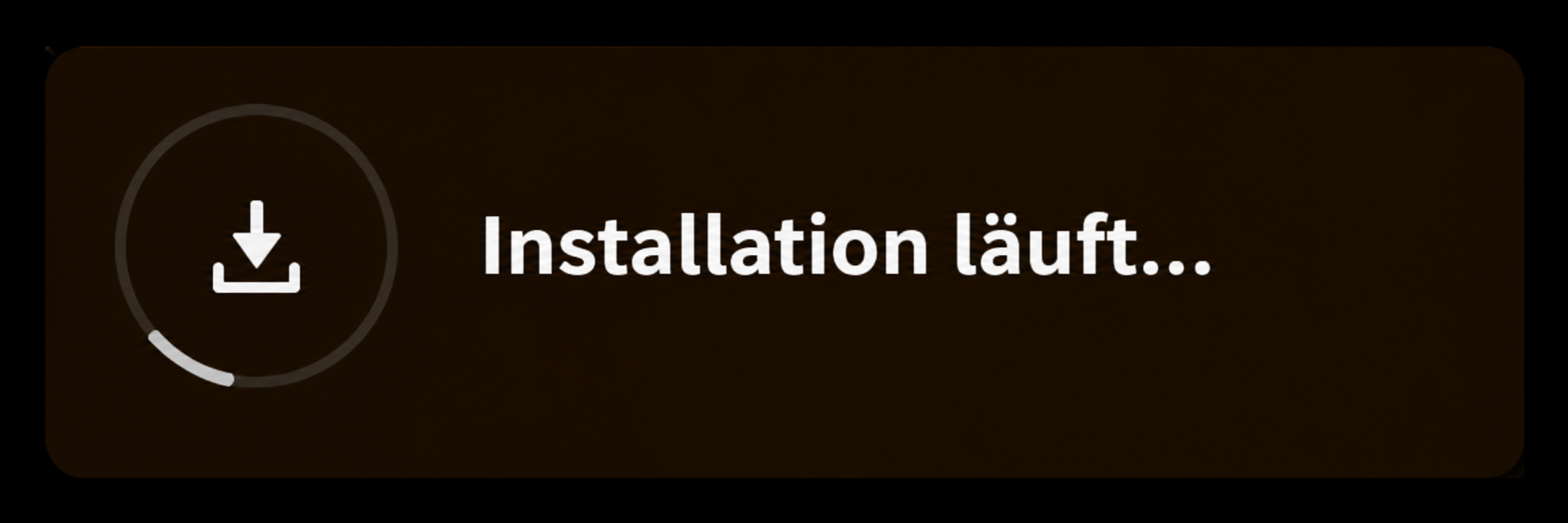
Wait until installation is complete. This usually only takes a few seconds.
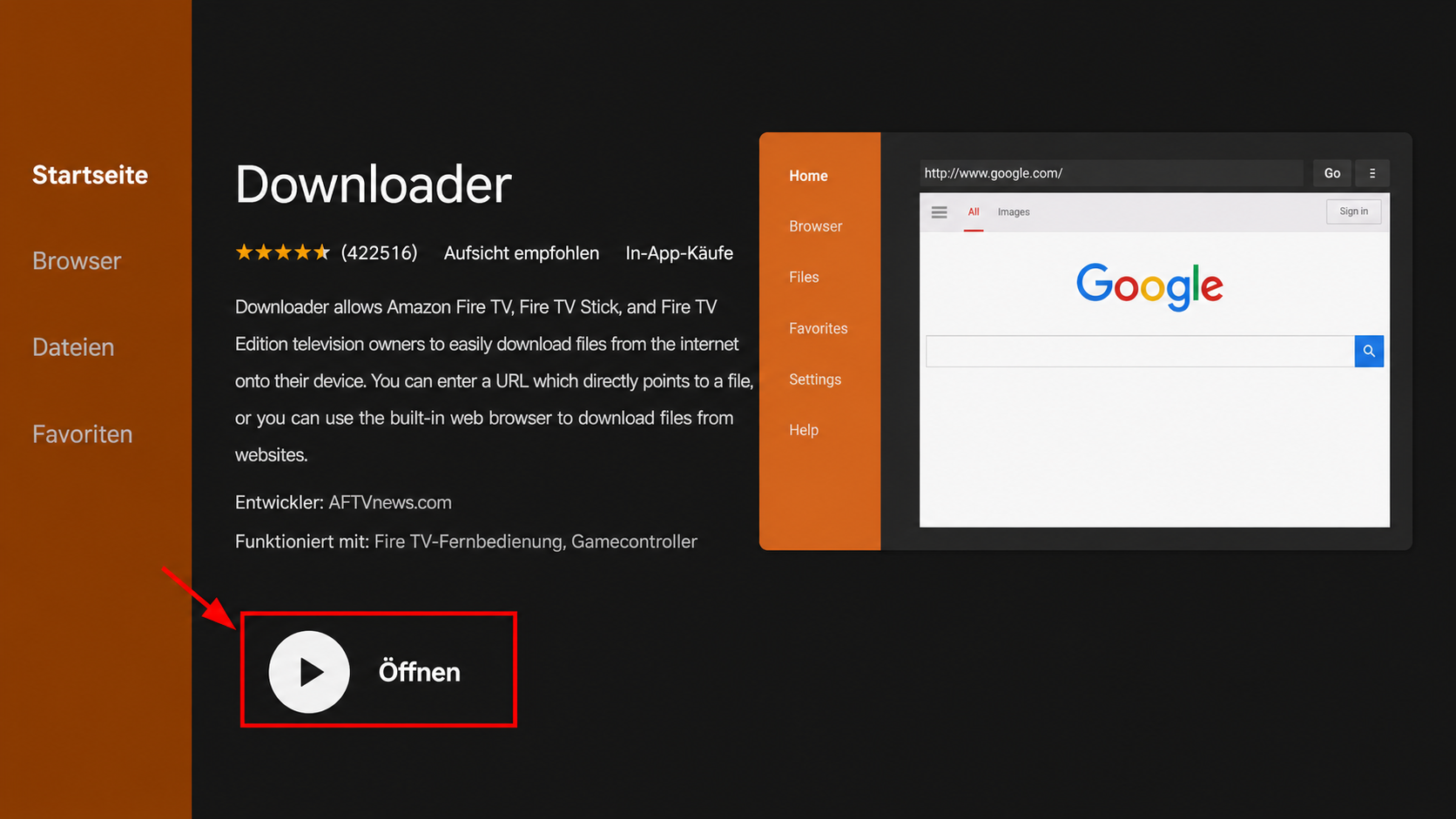
Open the Downloader app directly from the app detail page.
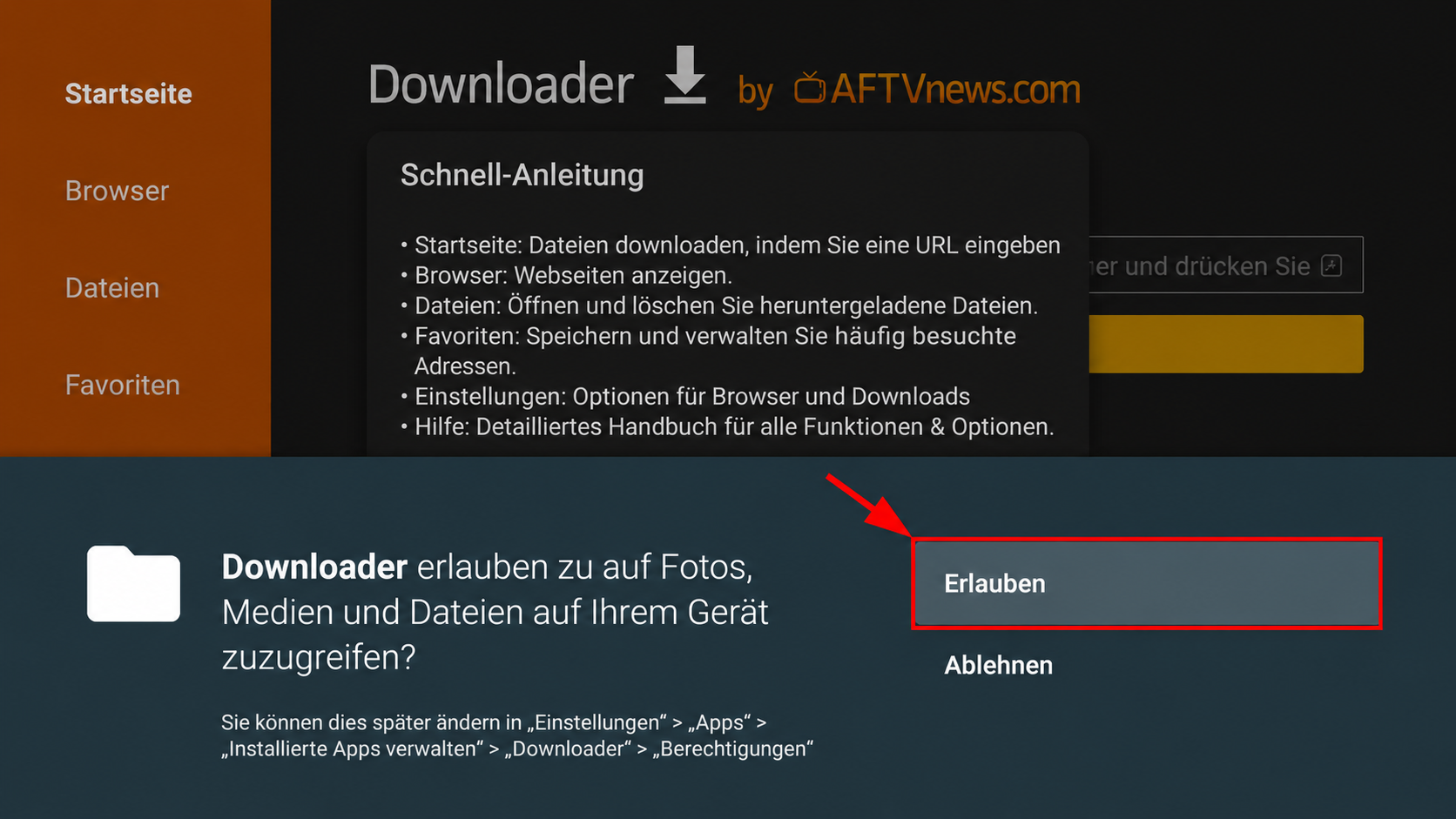
On first launch, Downloader asks for file access. Choose Allow so APK files can be downloaded and opened.
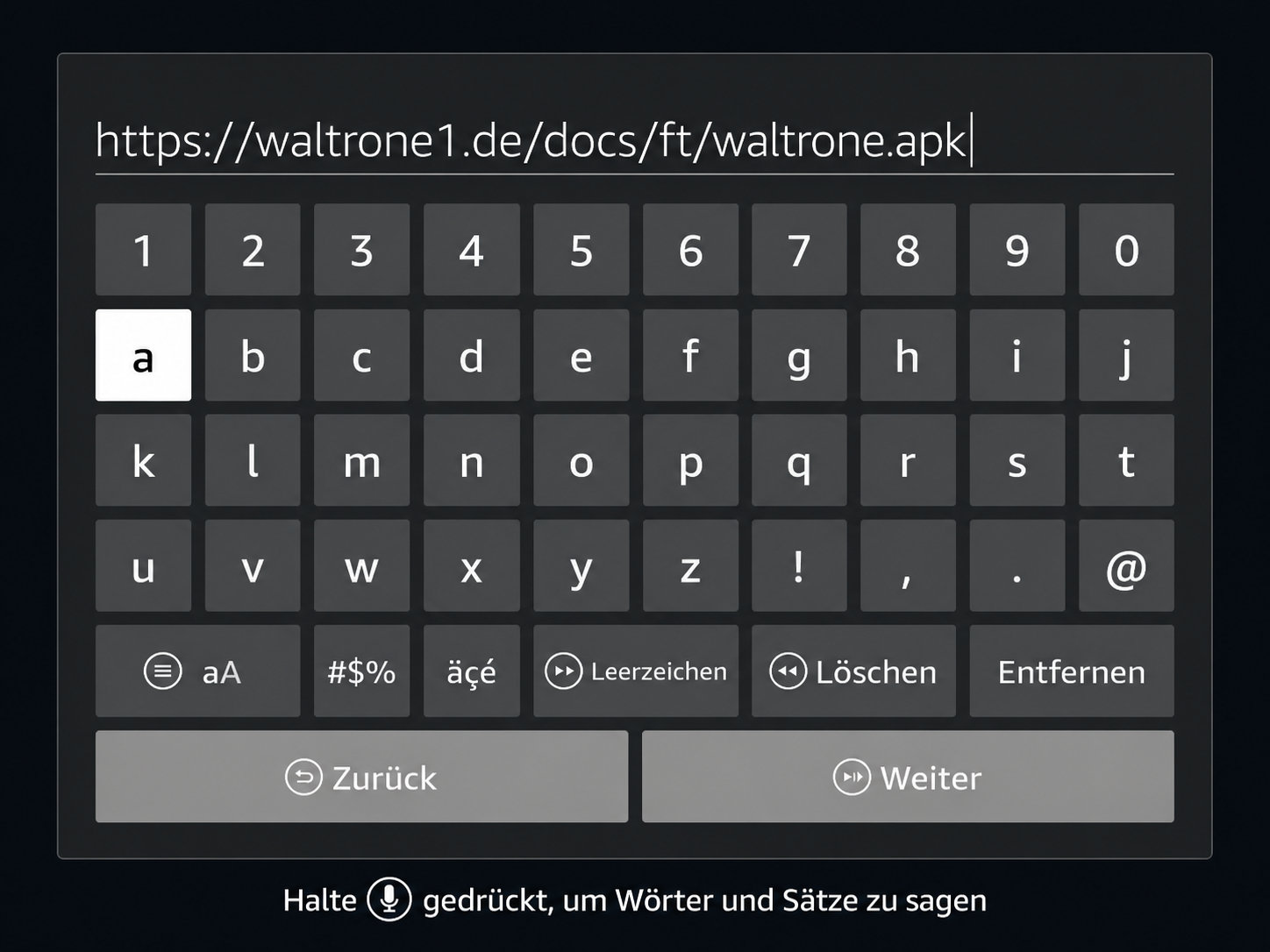
In Downloader, enter the short URL https://waltrone.de/docs/ft/waltrone.apk and confirm with Next or Go.
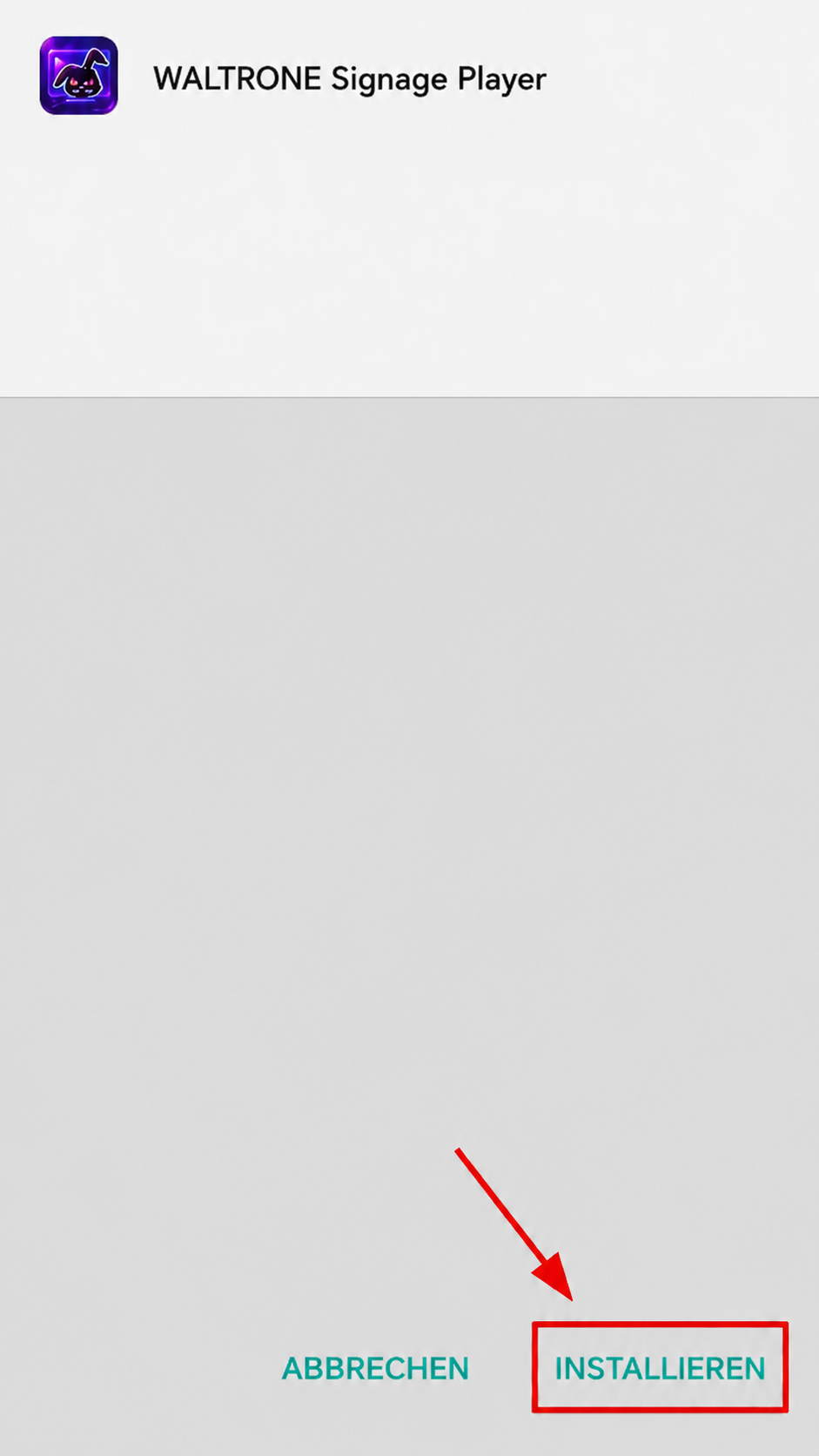
After the download, Fire TV opens the installation dialog. Select Install.
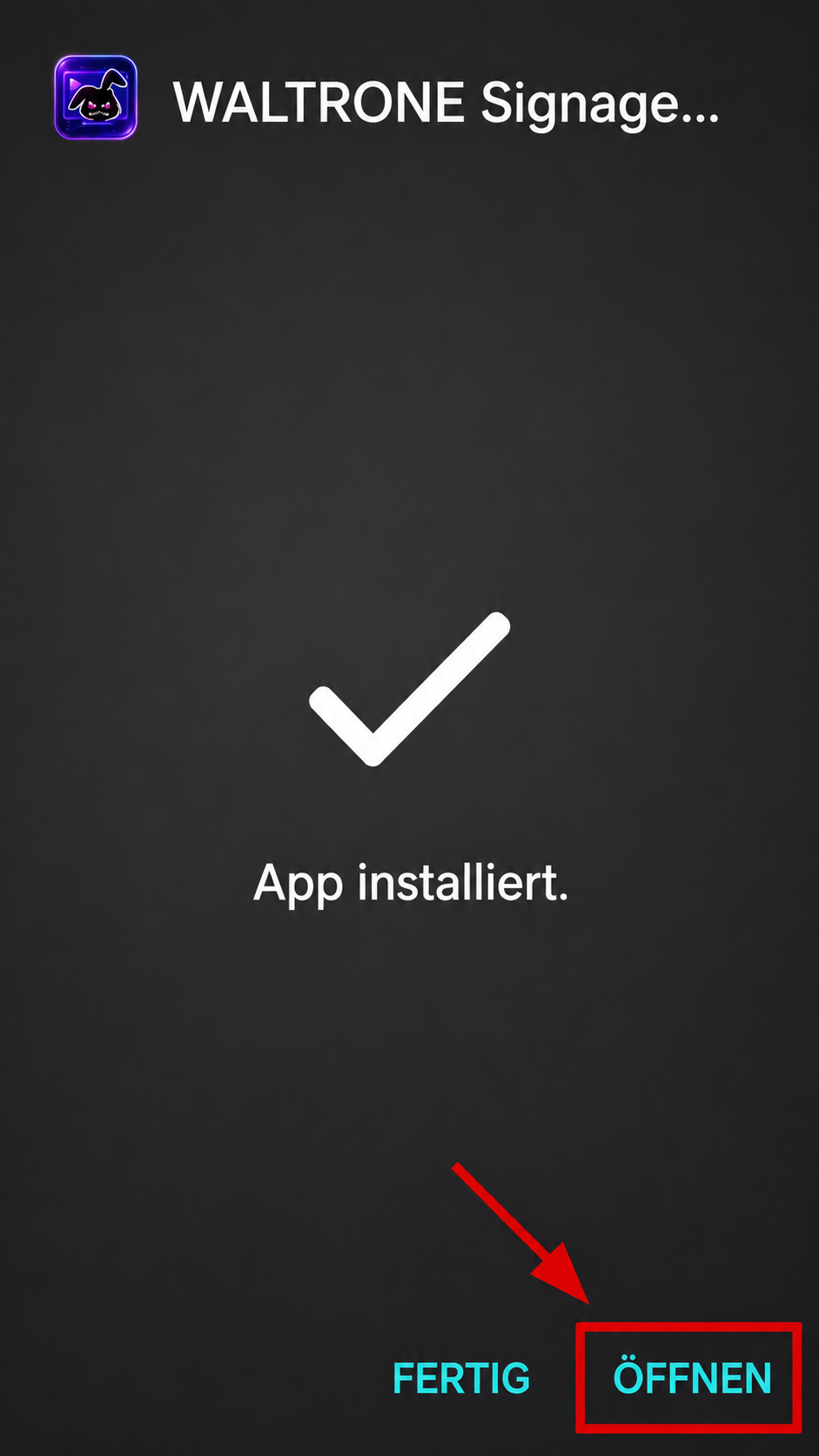
After installation, select Open to start the WALTRONE Signage Player directly.
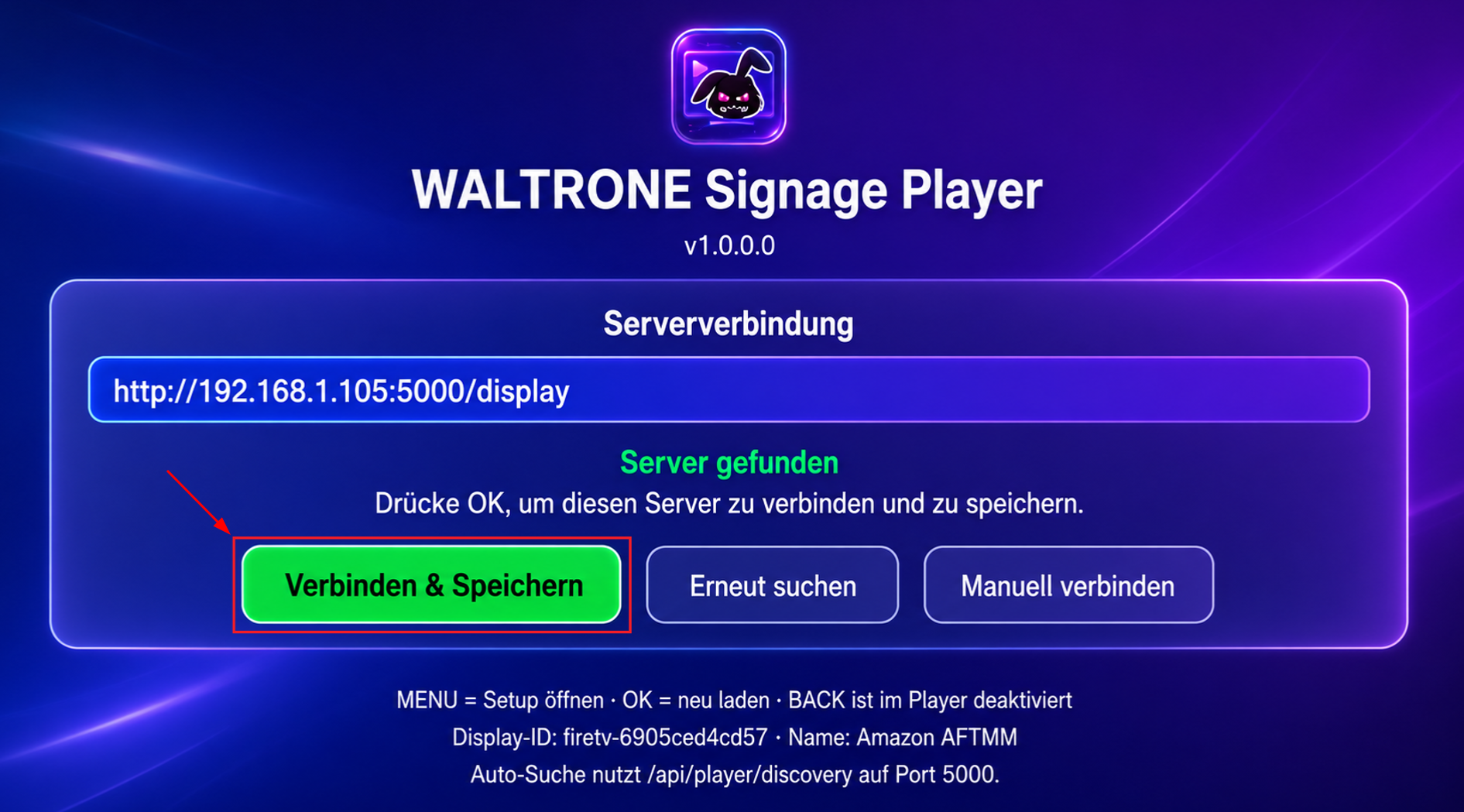
On the start screen, the server should be found automatically. Select Connect & Save so the player starts with the saved server address next time.