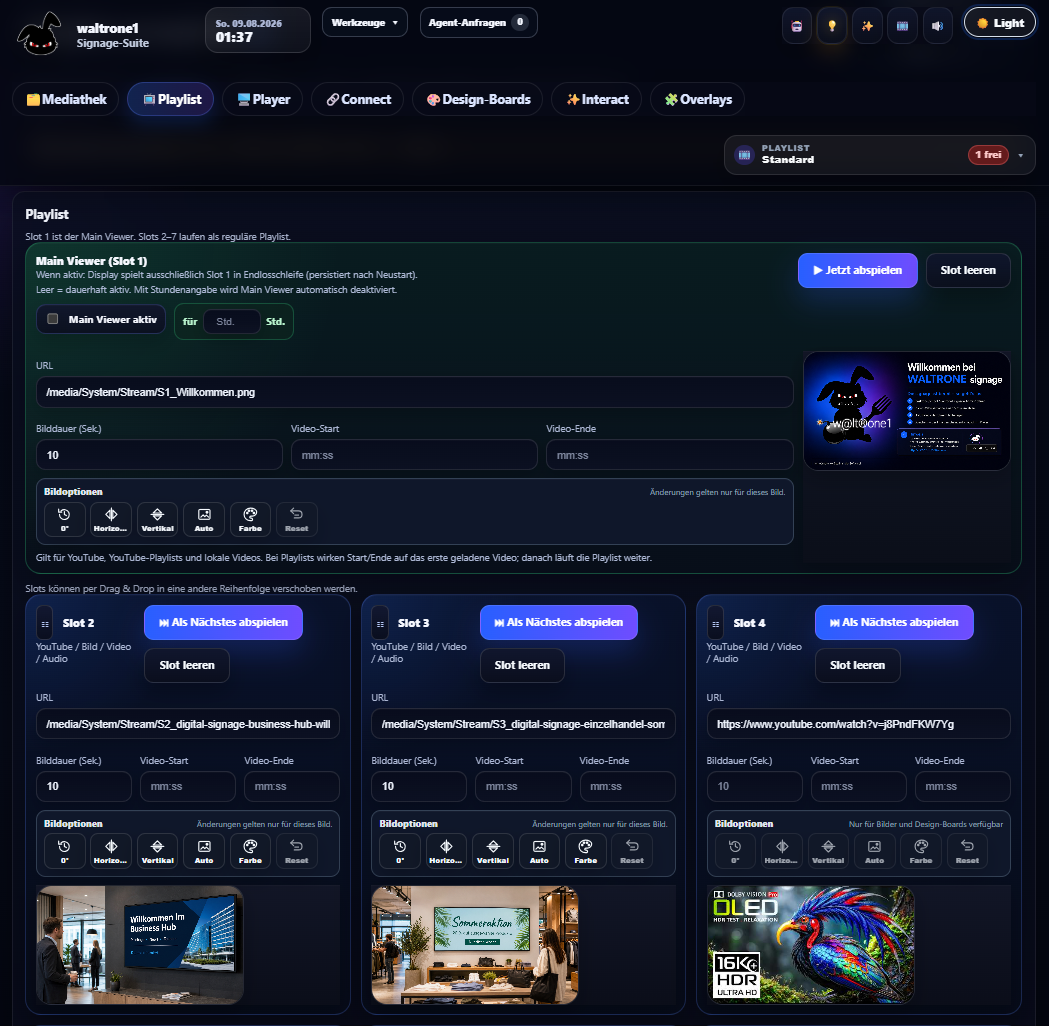
Playlist overview
At the top you see the Main Viewer (Slot 1). The regular slots follow below it. Use Play now to test content immediately.
Image options such as rotate, mirror, auto fit or color apply only to that image.
Assign content to slots, change the order and define reserve content.
This guide uses the same terms you see in the current interface.
This is where you define what plays one after another. Each position is called a Slot. You can use images, videos, YouTube content, audio and Design Boards.
At the top you see the Main Viewer (Slot 1). The regular slots follow below it. Use Play now to test content immediately.
Image options such as rotate, mirror, auto fit or color apply only to that image.
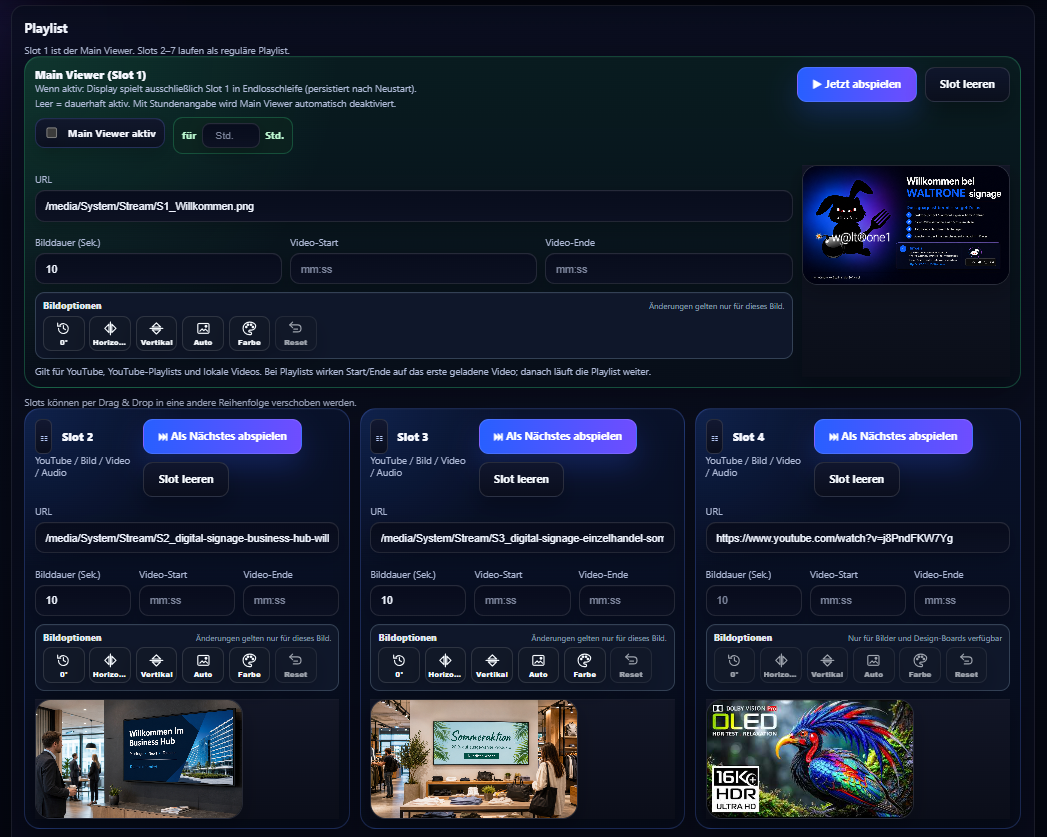
Each slot can have its own content and image duration. Use Play next to jump directly to a slot.
You can change the slot order with drag & drop.
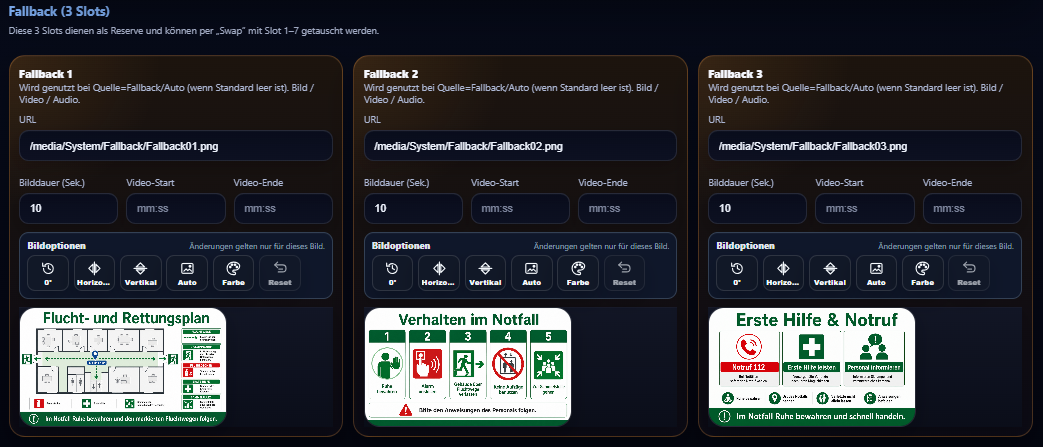
Fallback 1–3 take over when no regular content is running. Neutral emergency, welcome or information screens are a good choice.
The fallback order can also be changed.
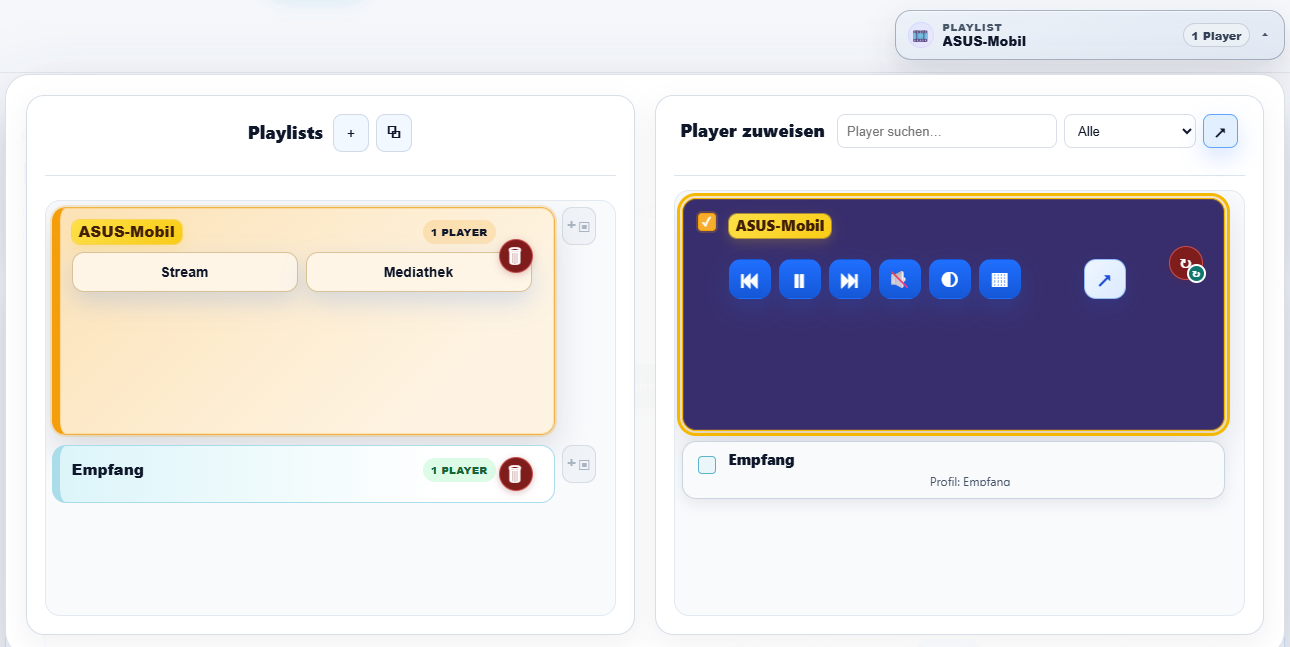
In the Network Edition, you can create several playlists and assign one playlist to multiple players. Select the playlist you want to edit and mark the players that should use it.
For example, Reception can show different content from a Meeting Room.
Change Image duration (sec.) in the relevant slot. For video or YouTube content, start and end times can be set when those fields are available.
✓ Check that you opened the correct playlist.
✓ Check that the intended player is assigned to that playlist.
✓ Is the Main Viewer active? If so, Slot 1 may remain on screen continuously.
✓ Under Player, check that the device is online and the screen is visible.
✓ Network Edition: after adding new media, allow a moment for the Agent to synchronize the files.