WALTRONE Signage Suite · Help

Player:
control your screen

See immediately which player is online, which playlist is running and what volume is set.

Player means: the screen you control

Under Player you see all configured output devices. In the Network Edition, a player can run on an Agent PC; in Standalone it runs locally.

Player → choose the player name → check status and settings

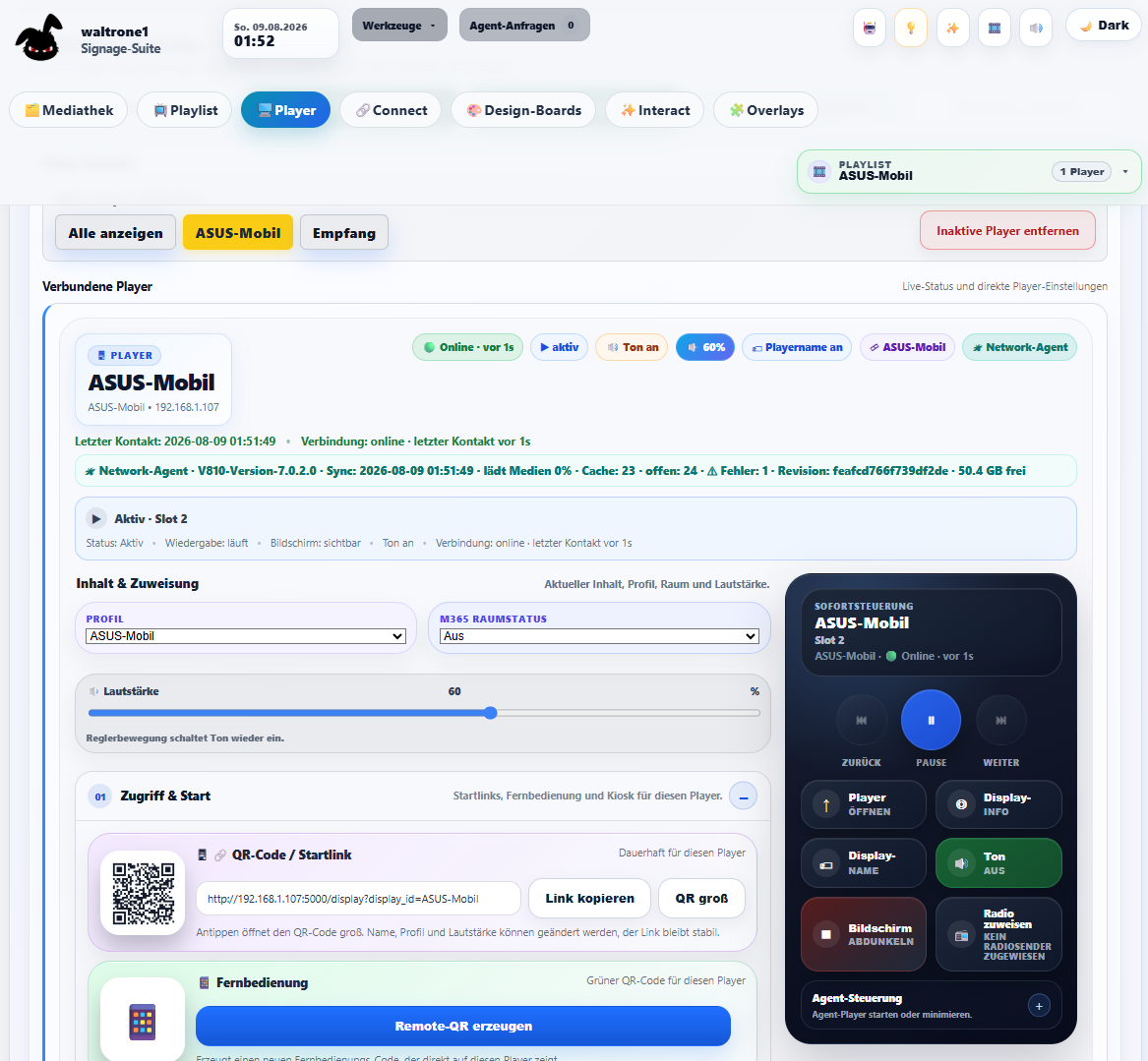
Player view for a network Agent

Status at a glance

At the top you can immediately see whether the player is online, whether playback is active, whether sound is on, and which playlist/profile is in use.

For a network Agent, the status line also shows whether media are currently being synchronized.
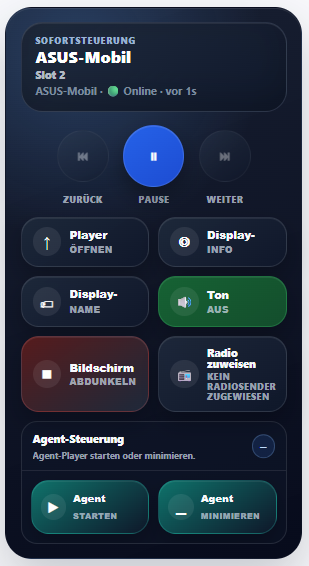
Instant controls for a network player

Instant controls

Go back, pause or continue directly. You can also open the player, blank the screen, toggle sound, or start/minimize the player on an Agent.

These actions affect the selected player immediately.

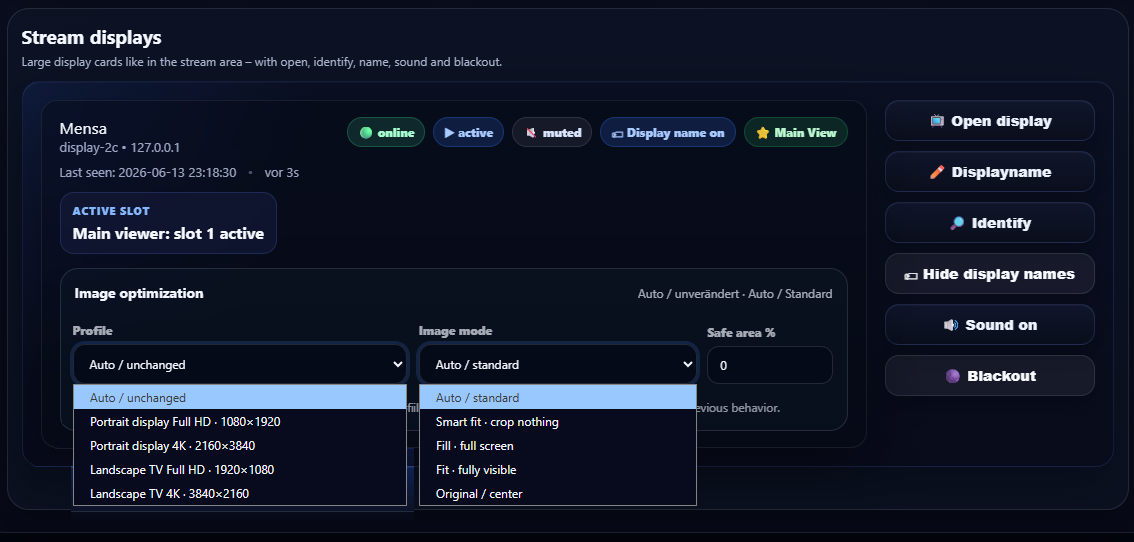
Player image optimization

Image adjustment per player

If content is cropped, too small or shown in the wrong format, profile, image mode and Safe Area can help. For a normal landscape TV, automatic/default display is usually the best starting point.

The most important status indicators

Online

The player is reporting to the server and can be controlled.

Offline / last contact was some time ago

Check whether the PC is running and connected to the same network.

loading media

The Agent is downloading new content. Large files can take a little longer.

Playlist, volume and room assignment

Under Content & Assignment, choose the desired profile/playlist and set the volume. Microsoft 365 room status can also be assigned per player when used.

Use clear player names such as Reception, Cafeteria or Meeting Room 1. That is much easier to manage later than device names such as “PC-07”.

Network Agent? If the player is marked as “Network Agent”, see Network & Agent for connection and approval steps.