
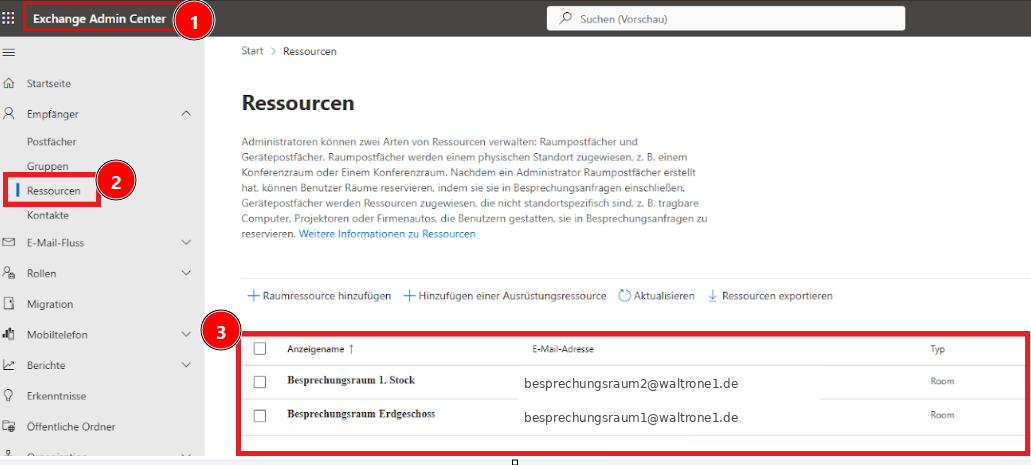
Open Exchange admin center
Open the recipients, resources, or rooms and equipment area in Exchange admin center. Existing room resources are listed there.
Connect Microsoft 365 room resources to WALTRONE using Entra and Microsoft Graph.
The Microsoft 365 room status overlay shows whether a room is currently free or busy on information displays. It can appear as a compact badge in Stream or Interact, or as a full room board with up to 9 active room resources.
WALTRONE reads calendar information through Microsoft Graph using an Entra app registration. The display only shows status information such as FREE, BUSY, free from, next booking and optionally additional time windows for the current day.
Have the following values or admin access ready before setup. The screenshots show a German Microsoft UI; English tenants use equivalent names.
| Value / access | Where it comes from | What it is used for |
|---|---|---|
| Tenant ID | Microsoft Entra admin center | Used to request the Microsoft Graph token. |
| Application (client) ID | App registration in Entra | Identifies the WALTRONE app registration. |
| Client secret value | Certificates & secrets of the app registration | Acts as the app secret. Important: enter the value in WALTRONE, not the secret ID. |
| Room email address | Exchange admin center, resources | Room mailbox calendar, for example meetingroom@example.com. |
| Graph permissions | API permissions of the app registration | Calendars.ReadBasic.All for free/busy; optional MailboxSettings.Read for automatic time zones. |
The overlay needs at least one Microsoft 365 room resource. In the Exchange admin center, this is handled as a room mailbox. The important value is the room email address.
Open the recipients, resources, or rooms and equipment area in Exchange admin center. Existing room resources are listed there.
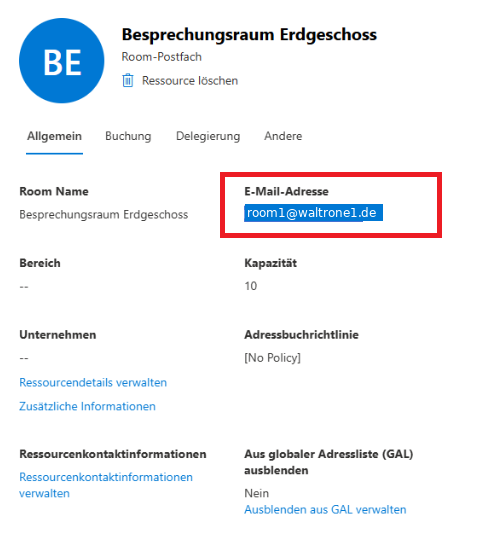
Open the room mailbox and note the email address. This address is later added as a room resource in WALTRONE.
WALTRONE uses the Microsoft Graph client credentials flow. This requires an app registration in Microsoft Entra.
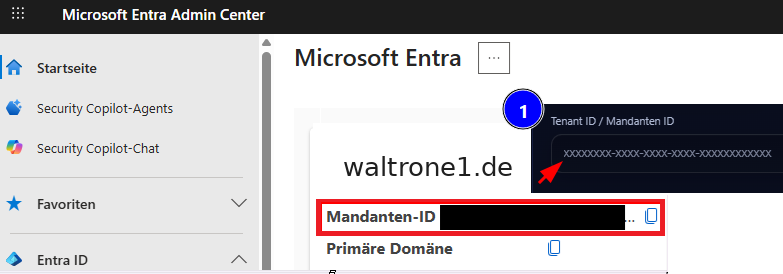
The Tenant ID is available in Microsoft Entra. Copy it into the Tenant ID field in WALTRONE.
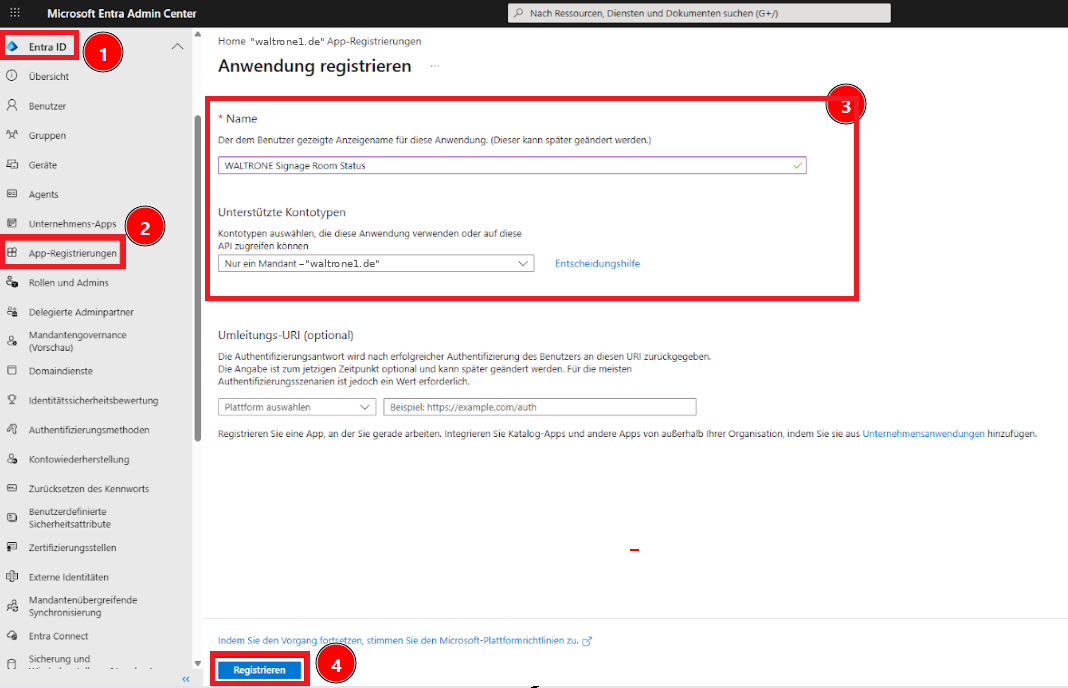
Create a new app registration, for example with a clear name such as WALTRONE Signage Room Status. This setup does not require user login on the display.
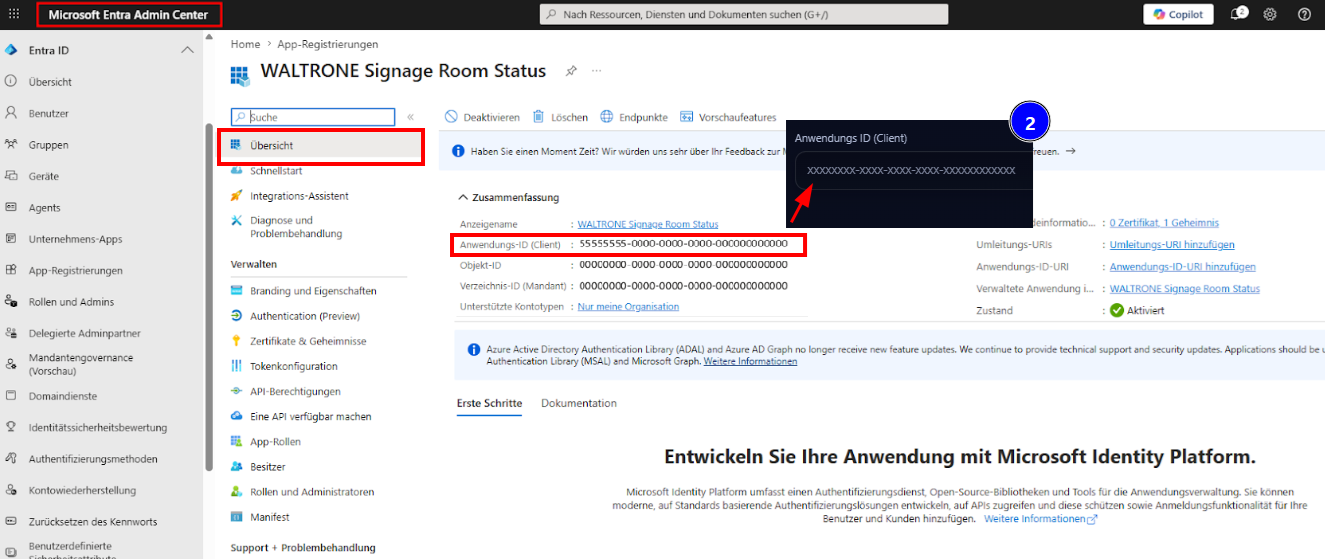
The app overview shows the Application (client) ID. Enter this ID in WALTRONE as the Client ID.
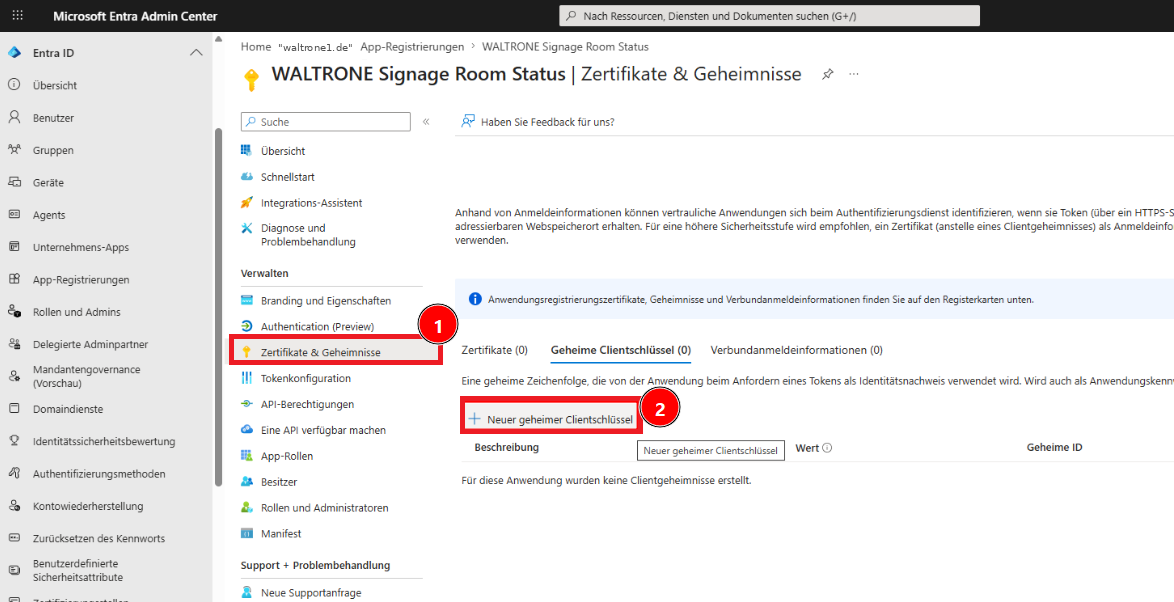
Open Certificates & secrets in the app registration to create a new client secret.
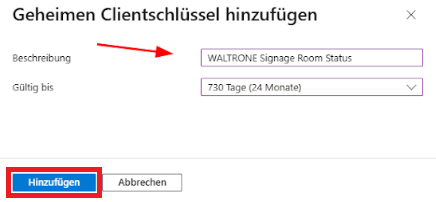
Create a new client secret. Use a clear description and choose an expiry according to your internal policy.
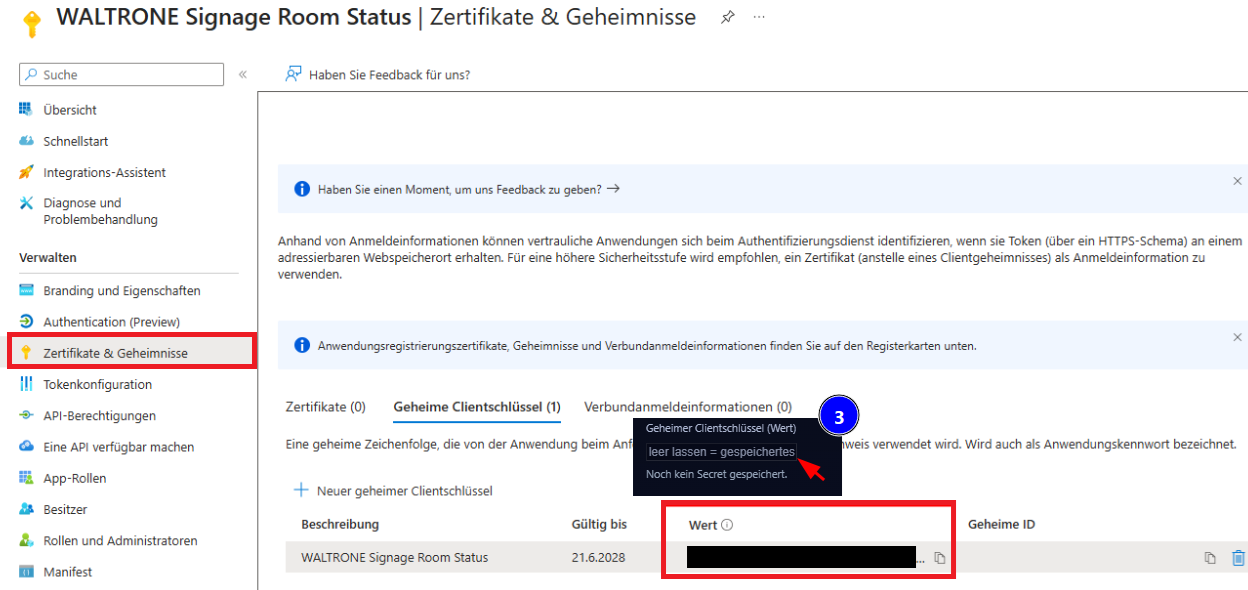
Copy the value of the secret right after creation. It will not be shown completely later. Do not enter the secret ID in WALTRONE.
The app needs Microsoft Graph application permissions. An administrator must then grant tenant-wide consent.
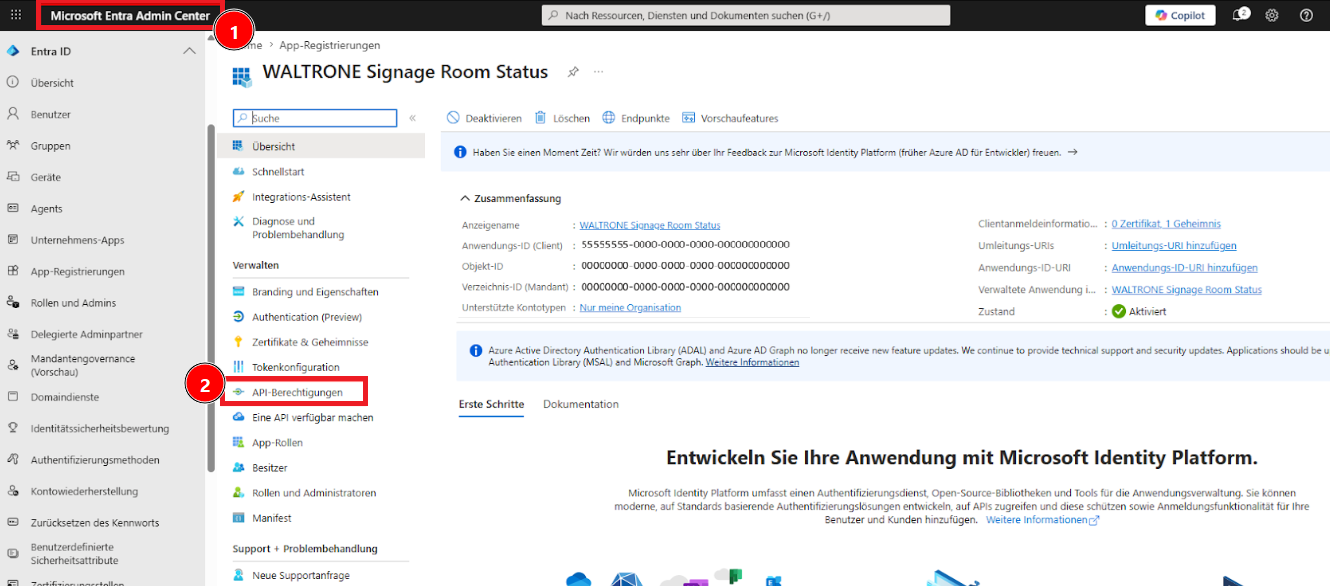
Open API permissions in the app registration.
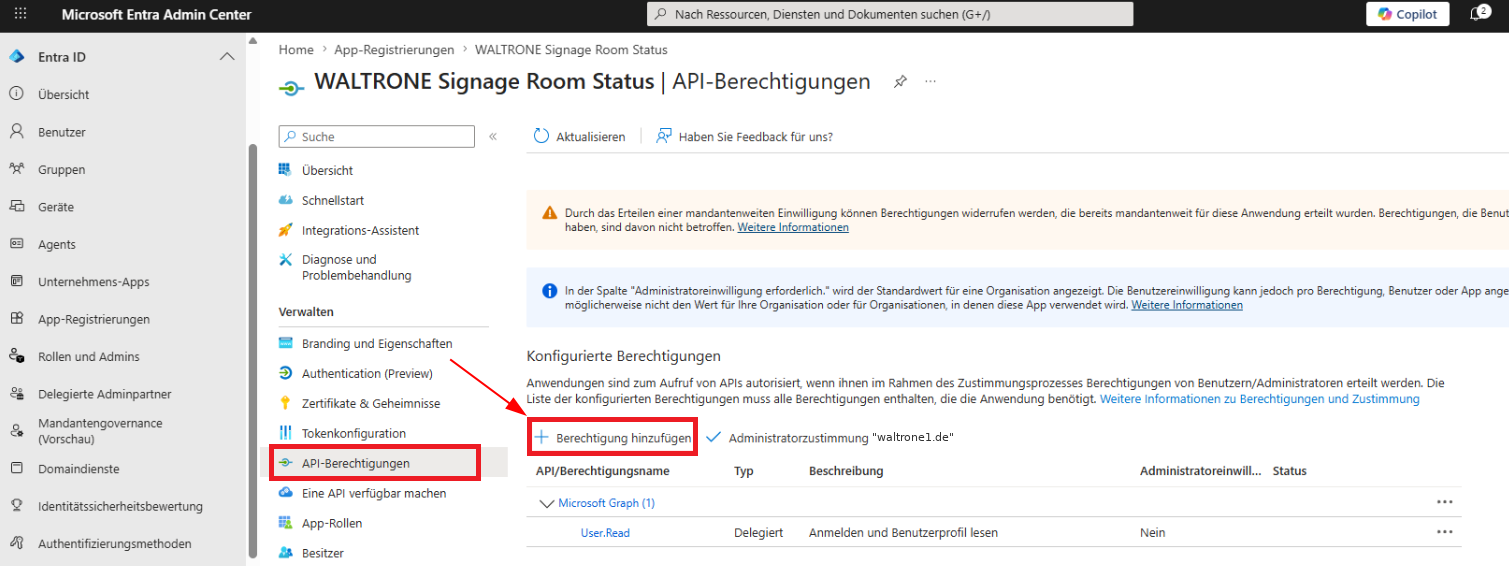
Start the Add a permission dialog.
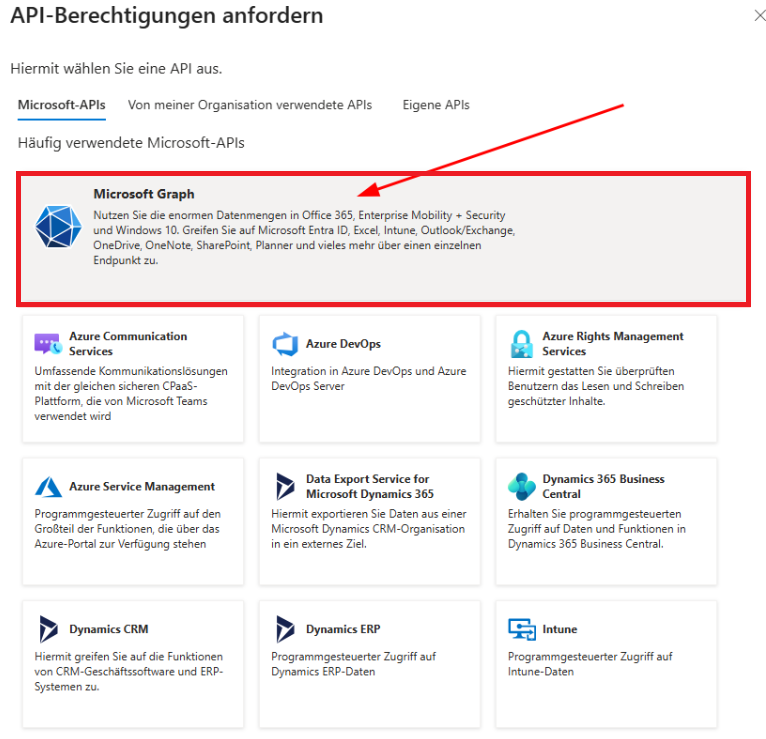
Choose Microsoft Graph as the API.
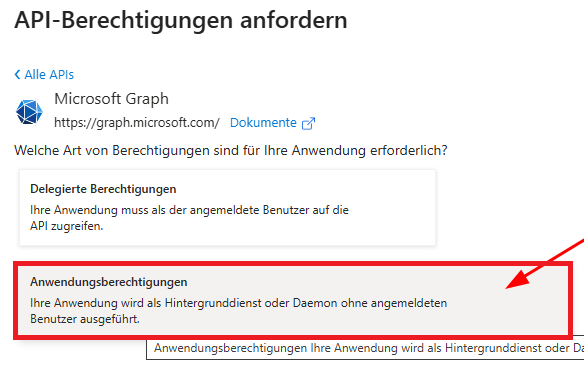
Select Application permissions. Delegated permissions are tied to users and do not fit display operation without user login.
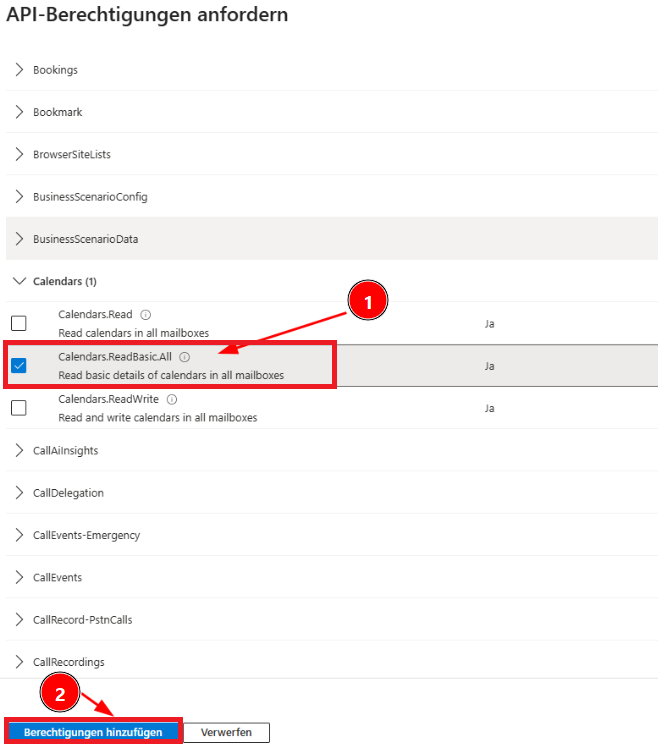
Select Calendars.ReadBasic.All so WALTRONE can read the required free/busy information. Add MailboxSettings.Read as well when automatic room time zones should be used.
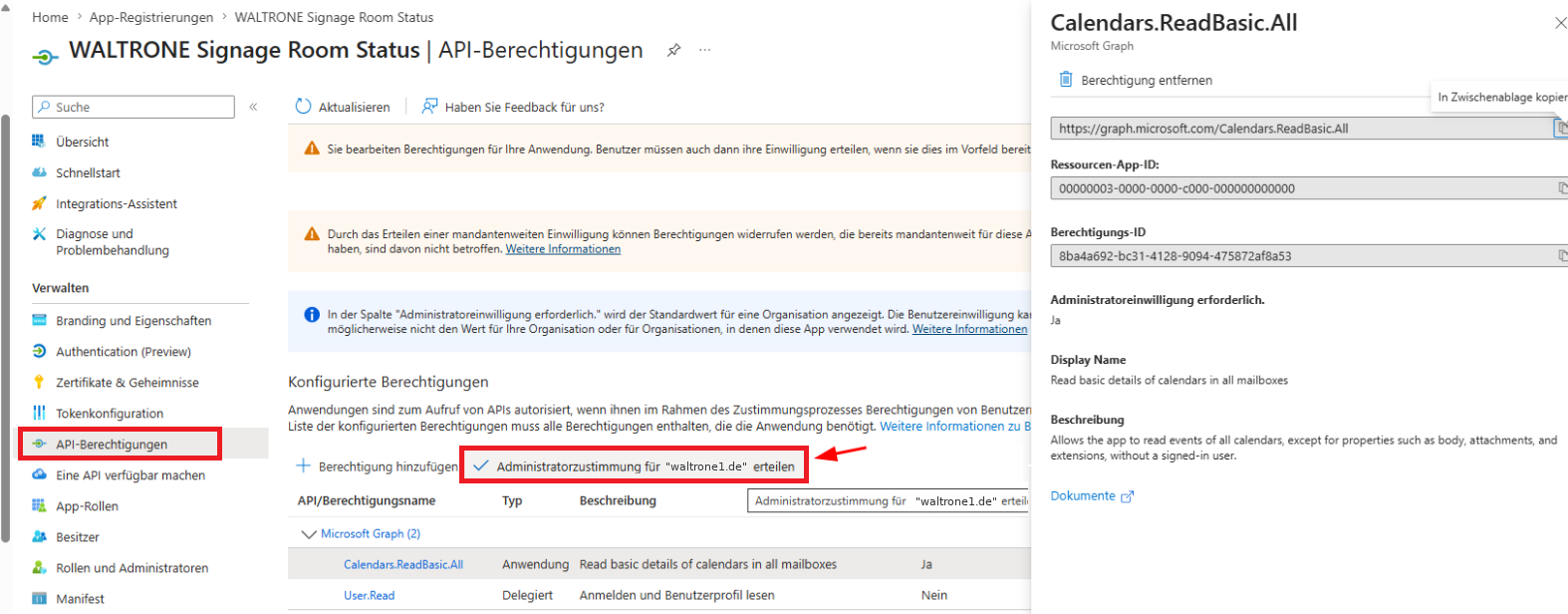
Check the selected permissions before saving. In production environments, define internally who is allowed to approve application permissions.

Grant admin consent for the tenant. Without admin consent, the app may not be able to access Graph even if permissions are listed.
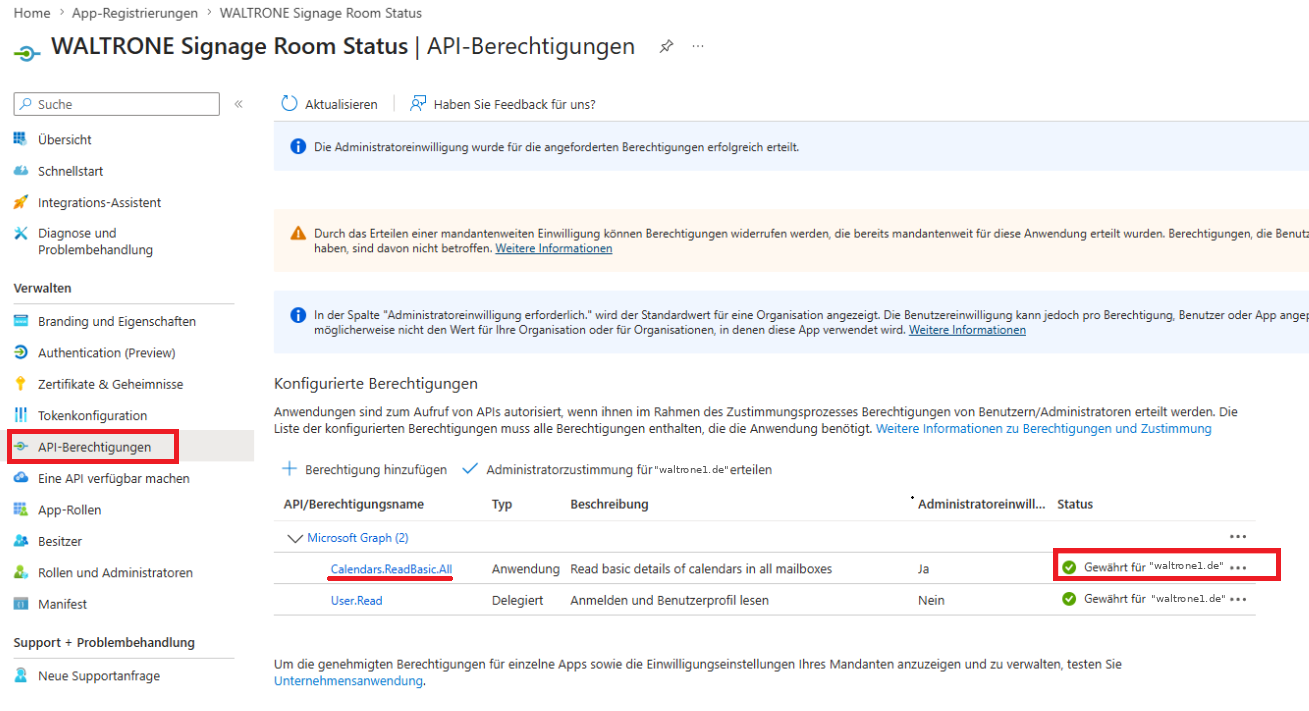
After consent, the permission status should be green or shown as granted.
Open Overlays or Microsoft 365 in WALTRONE. Enable the room status overlay, enter Tenant ID, Application ID, secret value and room resources, then save the setting.
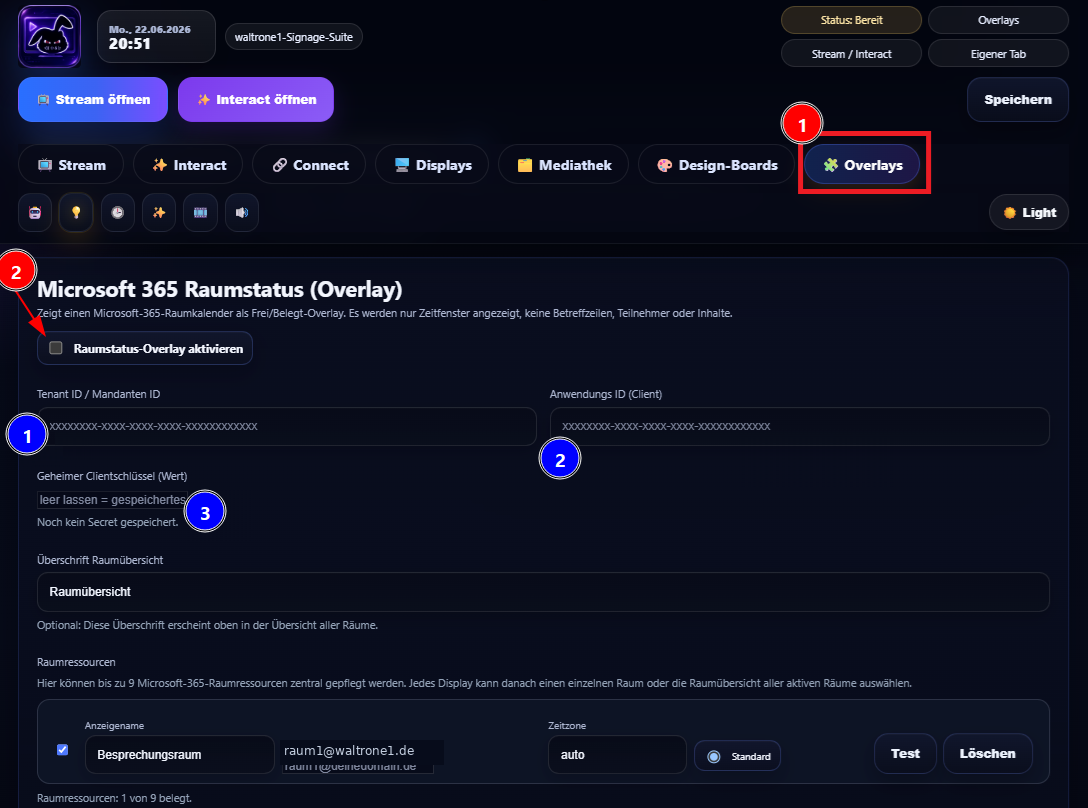
Configure target area, position, size, color, refresh interval and preview window. Optionally show additional time windows for the current day.
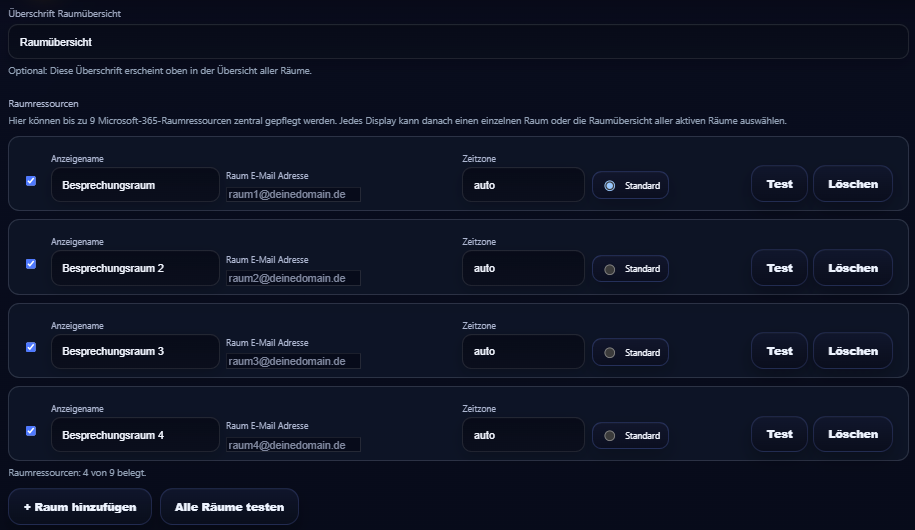
Add up to 9 room resources, enable the rooms that should be visible and mark one room as the default.

The test verifies token access, Graph permissions and the room mailbox. On success, the room status appears with time and data source.
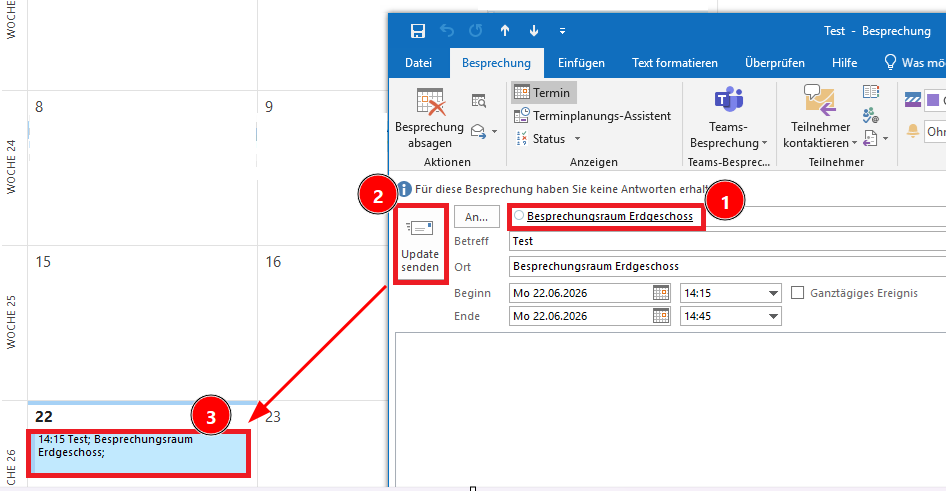
A test booking in Outlook helps verify whether the overlay changes from FREE to BUSY or next booking.
In display management, each display can decide which Microsoft 365 room status it should use. Available options are Default, Off, a specific room from the room list or the room board for all active rooms.
| Option | Behavior | Recommendation |
|---|---|---|
| Default | The display uses the centrally selected default room. | Good for simple setups with one meeting room. |
| Off | No room status is shown on this display. | Useful for displays without room context. |
| Specific room | The display shows exactly the selected room mailbox. | Ideal for door signs or monitors directly at a room. |
| Room board | Full-screen board with up to 9 active room resources. | Suitable for reception, corridors, office lobbies or floor overviews. |
MailboxSettings.Read for automatic time zones or set the room time zone manually.