Overlay means: additional information on top of your content
An Overlay appears over or alongside your normal content. Examples include time, weather, QR code, countdown or a results display. Your playlist generally continues to run underneath.
Overlays → open the required tile → configure content → choose players
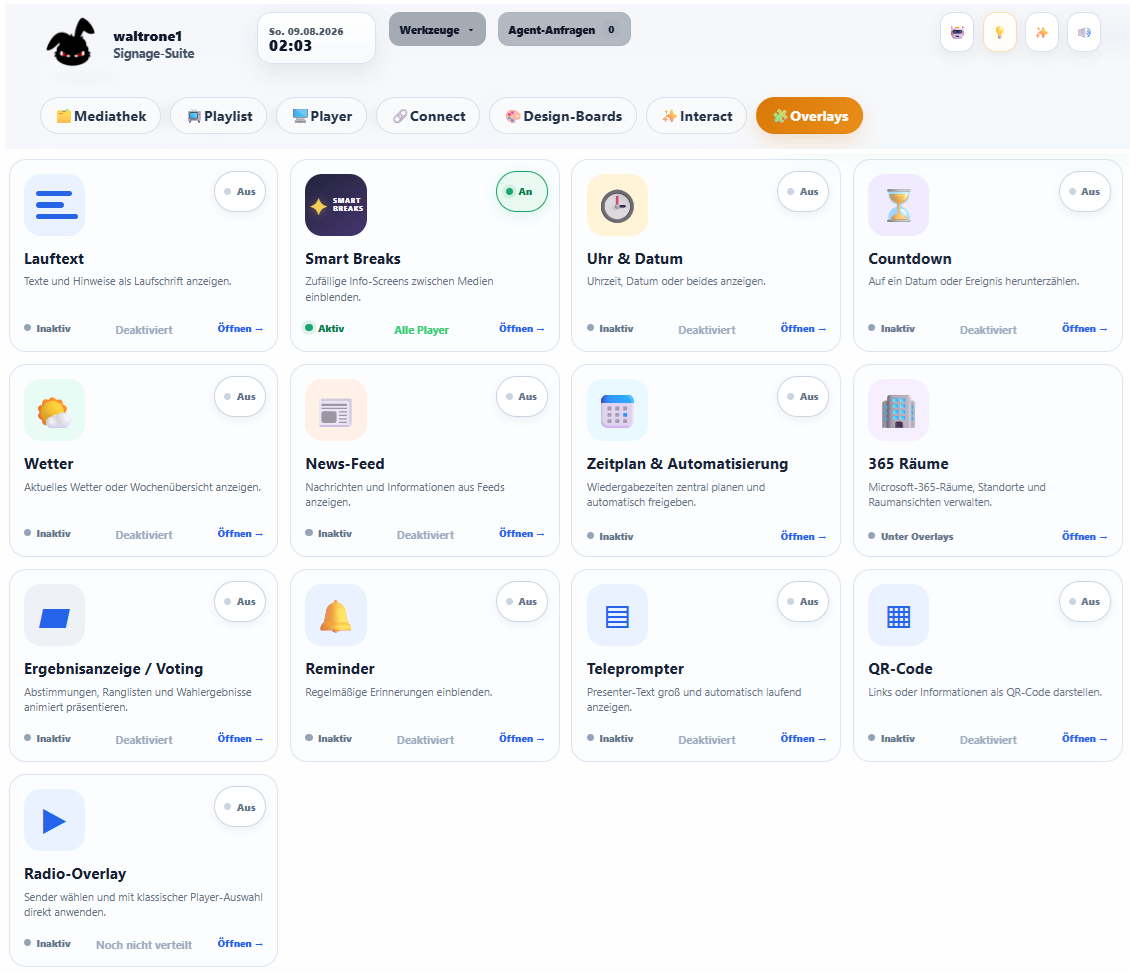
All Overlay features in one place
The overview includes Ticker, Smart Breaks, Clock & Date, Countdown, Weather, News Feed, Schedule & Automation, 365 Rooms, Results/Voting, Reminder, Teleprompter, QR Code and Radio.
Supported Overlays can be switched on or off directly from their tile.
Results / Voting
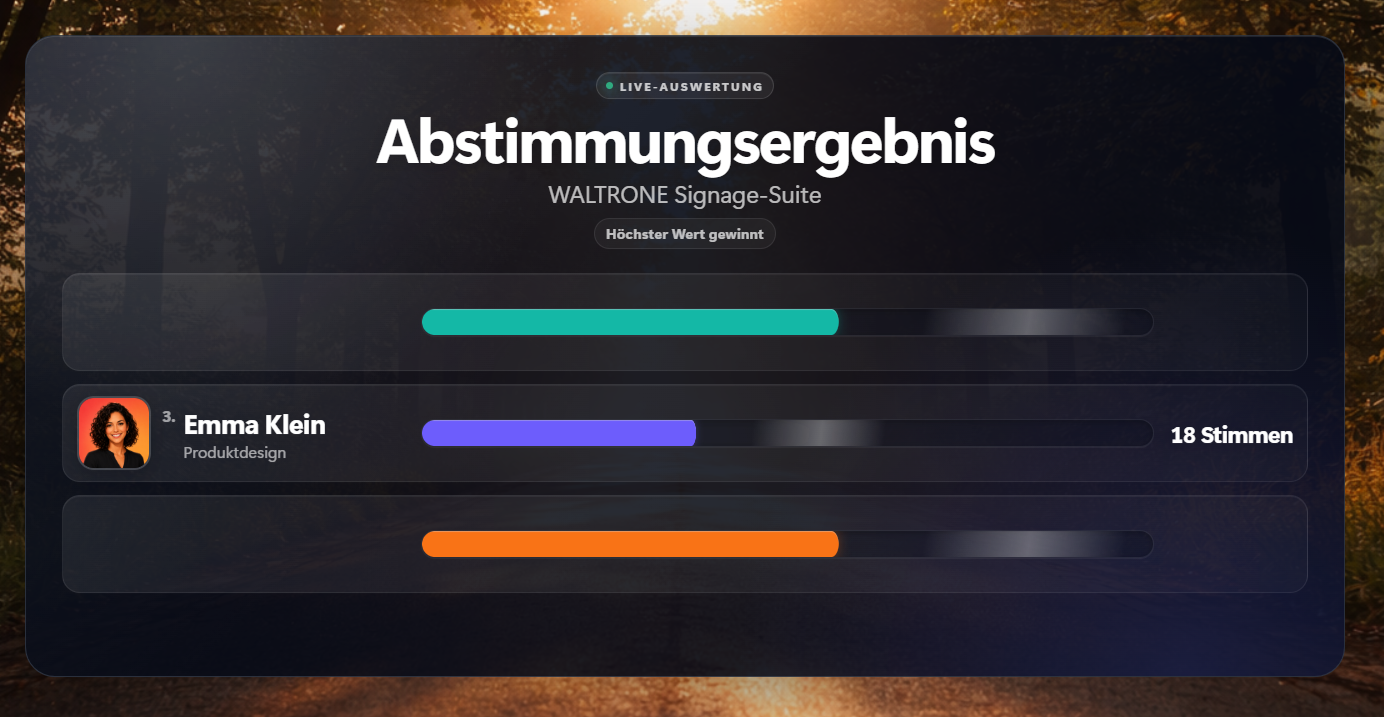
The Results display can present votes, rankings and election-style results with animation. Participants, images, values, ranking and the winner can be shown depending on the configuration.
Several display types are supported, including bars, columns, donut, circle and cards.
Which players should show an Overlay?
In the Overlay settings, choose either All Players or specific players. If you later turn an Overlay off and back on, a player assignment you deliberately selected is retained.
For Clock & Date, the first activation after initial setup or a factory reset can automatically make the feature visible on all players. After that, WALTRONE respects your individual assignment.
The main Overlay types in plain English
📝 TickerShort notices as scrolling text.
✨ Smart BreaksAutomatic information, quiz or puzzle breaks between media.
🕒 Clock & DateTime, date or both.
⌛ CountdownCounts down to a date or event.
🌤️ WeatherCurrent weather or weekly overview.
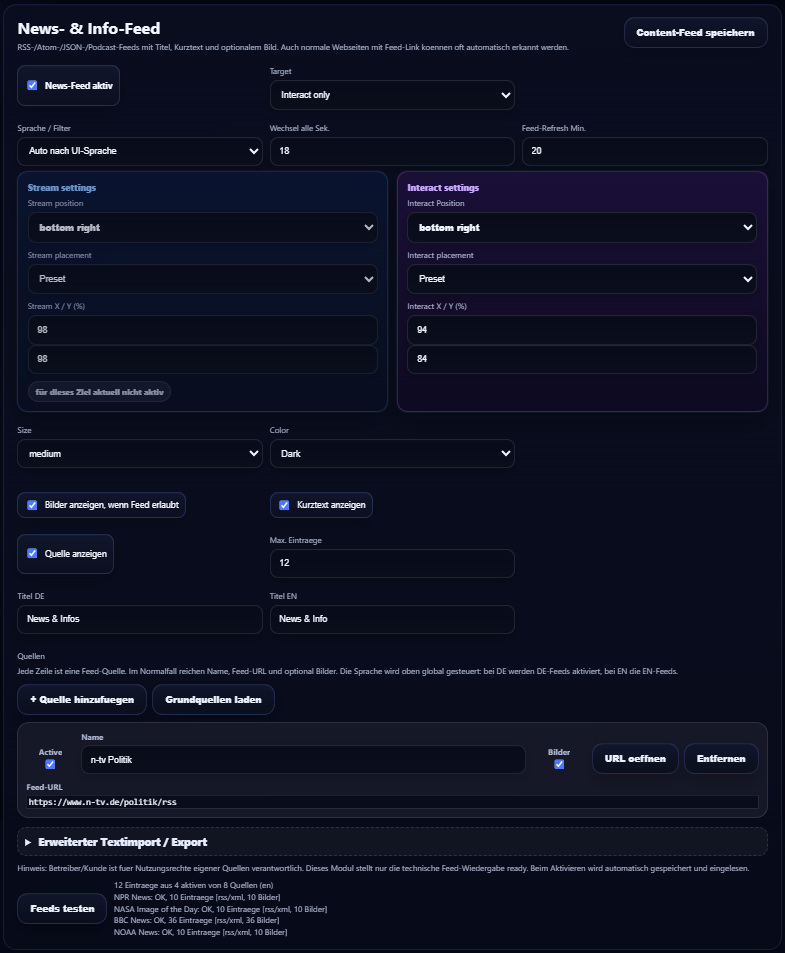
📰 News FeedNews and information from configured sources.
📅 Schedule & AutomationControl playback times and actions automatically.
🏢 365 RoomsMicrosoft 365 room status and room overviews.
📊 Results / VotingShow votes, rankings and results with animation.
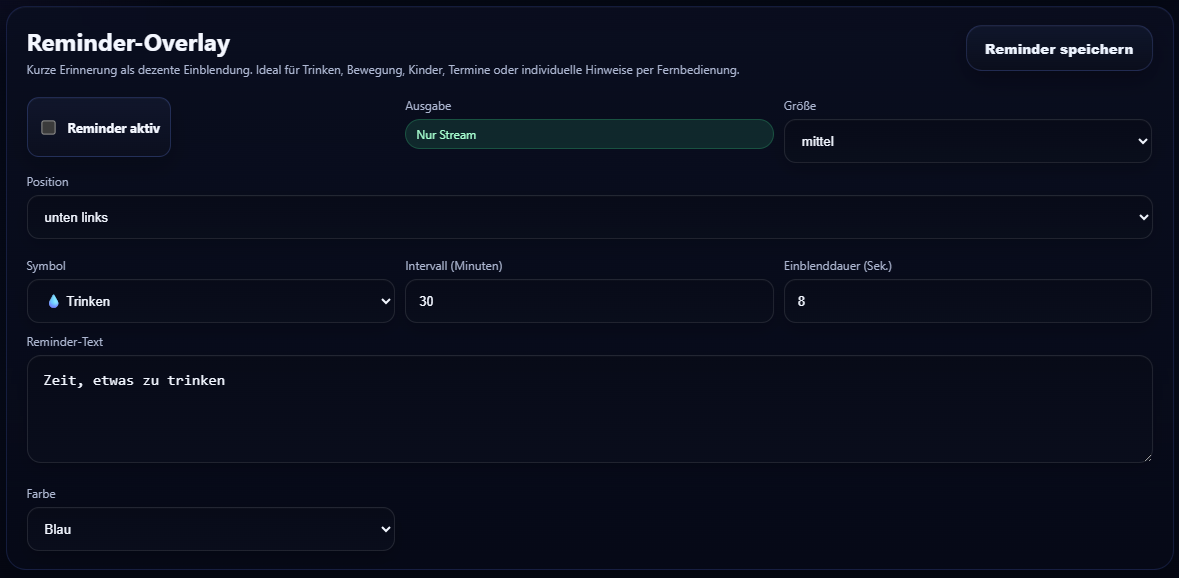
🔔 ReminderDisplay recurring reminders.
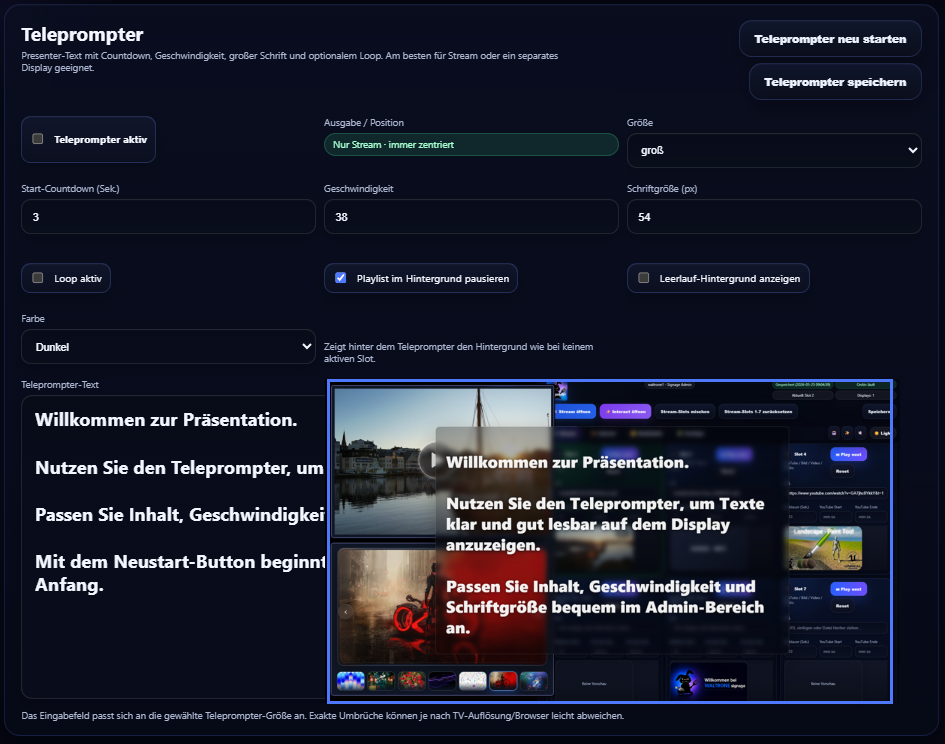
📜 TeleprompterShow longer text in a large, automatically scrolling view.
▦ QR CodeDisplay links or information as a scannable code.
▶ Radio OverlaySelect internet radio and assign it to one or more players.
Results / Voting — simple workflow
1. Add participants or optionsEnter names and values; images are optional.
2. Choose a display styleFor example horizontal bars, columns, donut or circle.
3. Choose target playersSelect the players that should show the result.
4. Start the outputThe values build up with animation and end at the saved ranking.
5. Check the real displayPay particular attention to readability and participant image format.
A square image works especially well for participant photos. If no image is supplied, WALTRONE can automatically use initials.
Smart Breaks
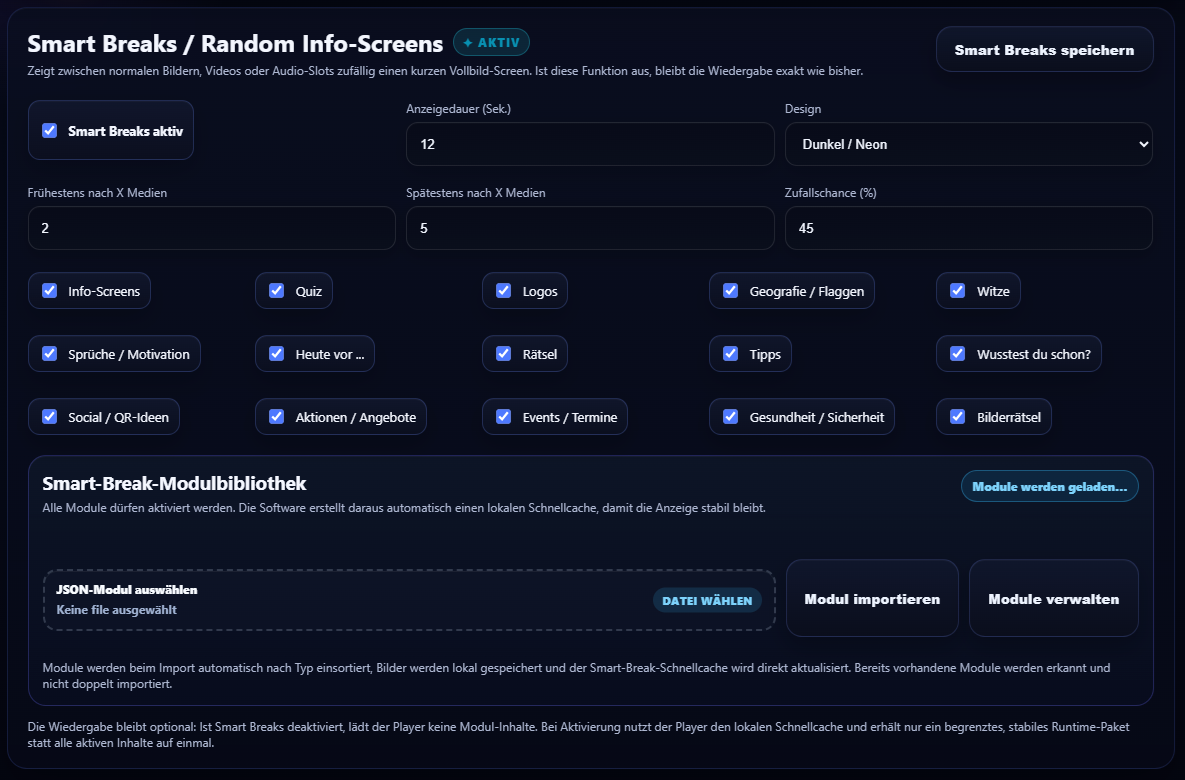
Smart Breaks can insert short information screens, puzzles or quiz content between normal media. Enable only categories that fit your use case.
News Feed
Choose the desired sources and check how much information remains comfortably readable on the display.
Teleprompter
The Teleprompter is useful for longer text shown at large size. Test speed and presentation on the target screen.
Reminder
Reminders are short recurring messages. Keep them concise so they can be understood while people pass by.
Position Overlays visually
The Overlay editor includes a visual screen positioner. Choose one of nine anchor points and fine-tune the placement with horizontal and vertical controls instead of entering raw coordinates.
This makes it easier to keep clocks, QR codes, reminders and other Overlays consistently aligned across different screens.
Greeting / Welcome Overlay
The Greeting Overlay can show multilingual welcome messages over the running content. Greeting active starts one sequence when switched from off to on; endless looping is off by default.
First start / factory resetThe curated “Elegant Welcome” can run automatically once; normal use stays under user control.
Turn off immediatelyDisabling Greeting closes the active Greeting instead of waiting for another loop.
DesignText design and optional Frozen Glass can be adjusted in the backend.
RemoteThe remote control keeps the quick controls simple; advanced design settings remain in the backend.
Text-to-Speech and subtitles
WALTRONE can read text aloud using locally available Windows/browser voices. Voice availability depends on the installed language packs and the browser/system.
Up to 20,000 charactersLonger announcements and information texts can be prepared in the TTS editor.
Three subtitle modesShow the complete text, sentence/section based subtitles, or live highlighting.
Manual subtitle translationIf the subtitle field contains text, WALTRONE uses it; otherwise the original TTS text is shown. Automatic translation is intentionally not applied.
Frozen GlassOptional background glass can improve subtitle readability over moving content.
Smart Paste: Ctrl+Shift+V cleans pasted text and fixes awkward line breaks. The remote control can toggle subtitles and clear the text quickly.
Reminder target: Reminder can be configured for Stream, Interact or both output modes.Microsoft 365 Rooms
If you want to show Microsoft 365 meeting-room information, there is a separate detailed guide for the Entra app, room mailbox and connection test.
Set up Microsoft 365 room status
Looking for the scheduler? In version 9.0.36.0, Schedule & Automation is located under Overlays — no longer in the Playlist area.