
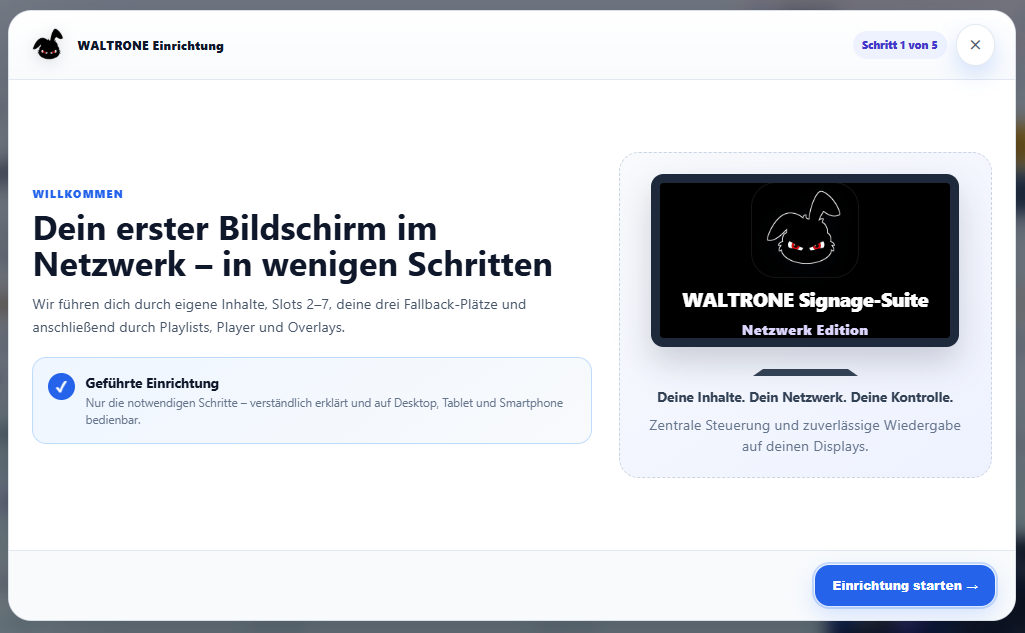
1. Start the setup
The first screen briefly explains what will be configured. In the Network Edition, it also points you toward playlists and player assignment.
Click Start setup.
Use the Setup Wizard to put your own content on the screen first.
After that, we show you where to find Playlist, Player and Overlays.
PowerPoint currently requires LibreOffice; Microsoft PowerPoint support is being prepared as an alternative. PDF needs no Office, but currently requires FFmpeg. The existing Store version may need additional installs. Requirements and planned improvements →
On first launch, WALTRONE guides you through the basic setup. During the real first-run setup, only known WALTRONE demo content is removed. Your own content is never treated as demo content.
Open it again later: System → Setup Wizard
The first screen briefly explains what will be configured. In the Network Edition, it also points you toward playlists and player assignment.
Click Start setup.
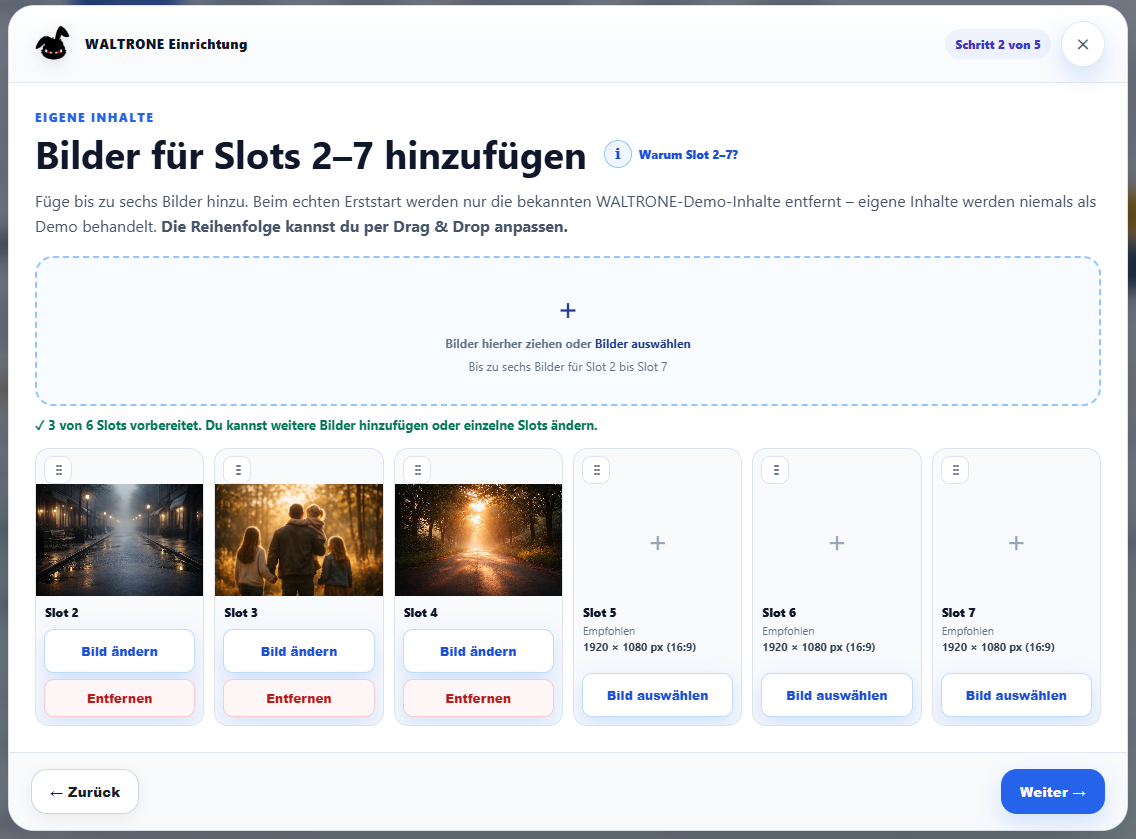
Add your images. On a desktop PC, you can also reorder them with drag & drop. On a tablet or smartphone, normal file selection is enough.
Slot 1 is reserved for the Main Viewer, so the normal playlist starts at Slot 2.
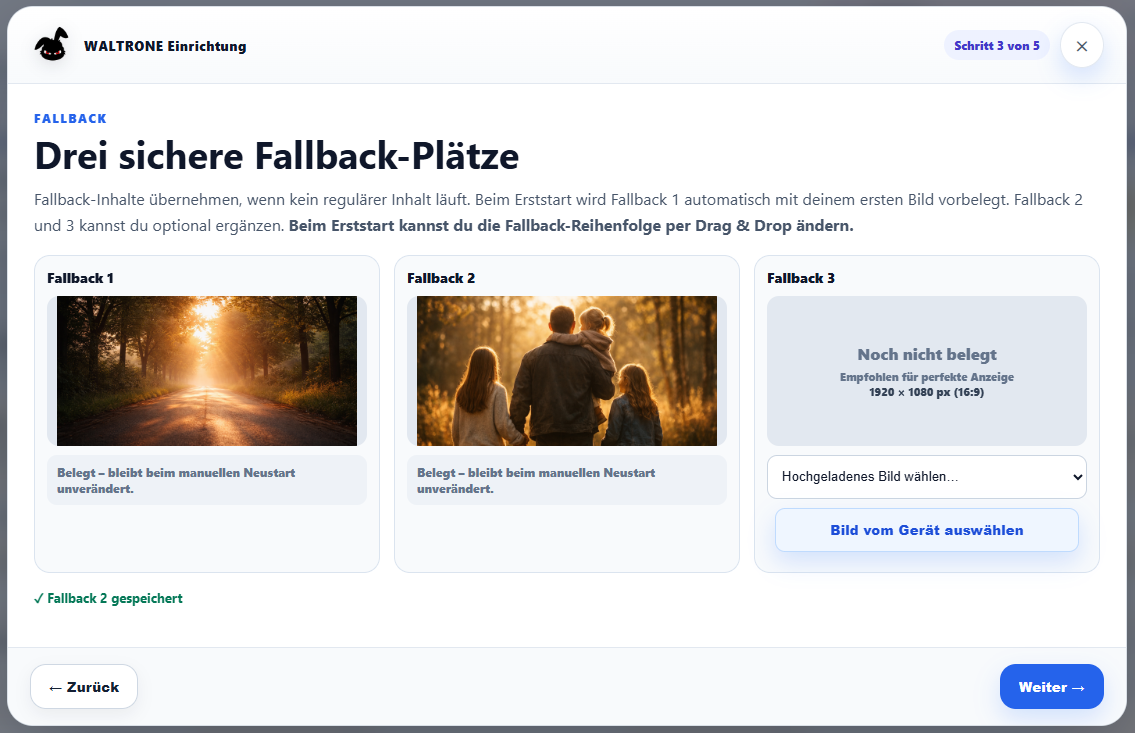
Fallbacks are reserve content. During the real first-run setup, Fallback 1 is automatically filled with your first image. Fallback 2 and 3 are optional.
If you open the wizard manually later, existing personal slots and fallbacks are not overwritten.
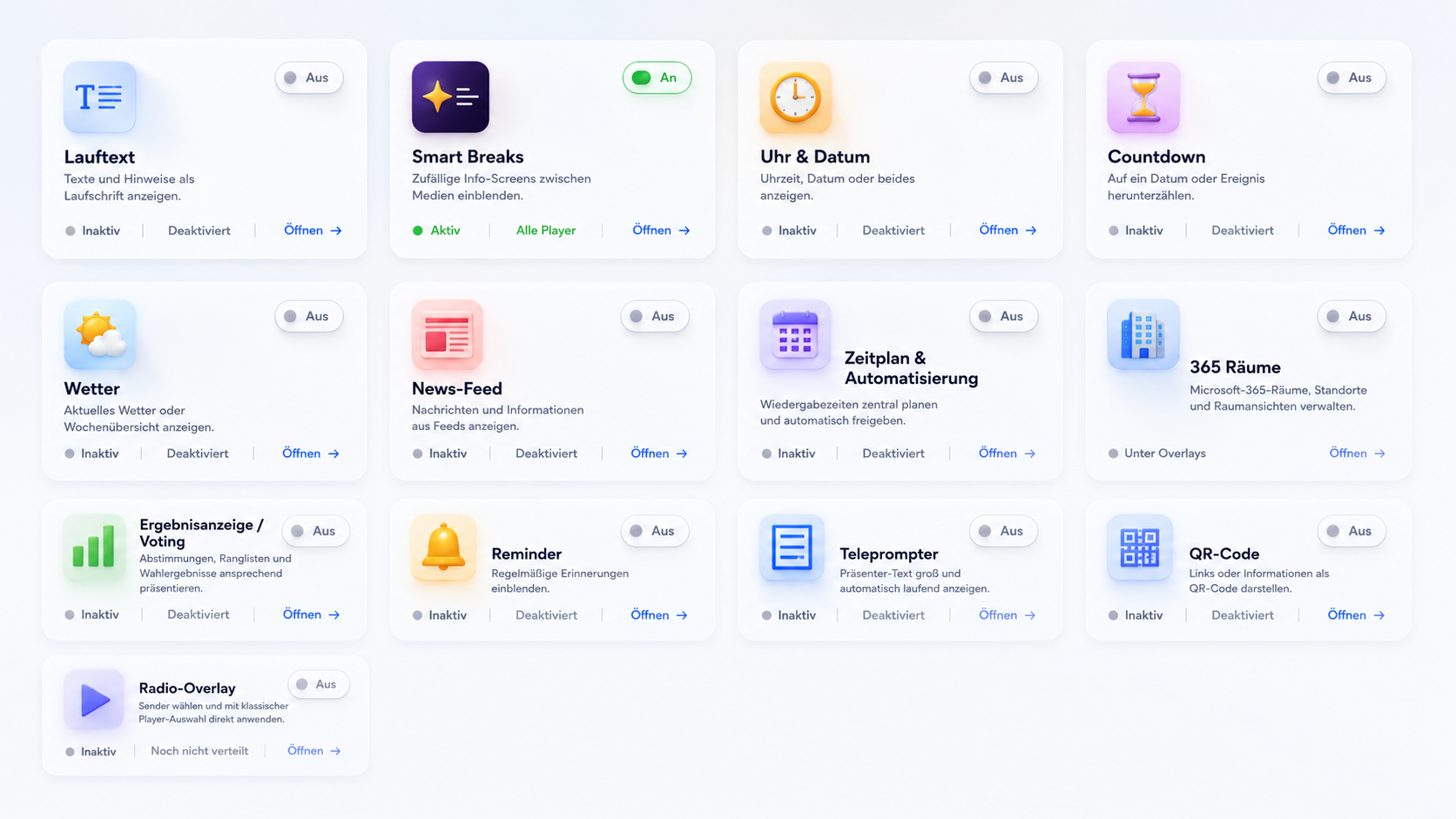
The wizard can prepare Time & Date as the recommended example overlay and optionally Reminder. The selection applies to the player being configured; all detailed overlay settings remain available later under Overlays.
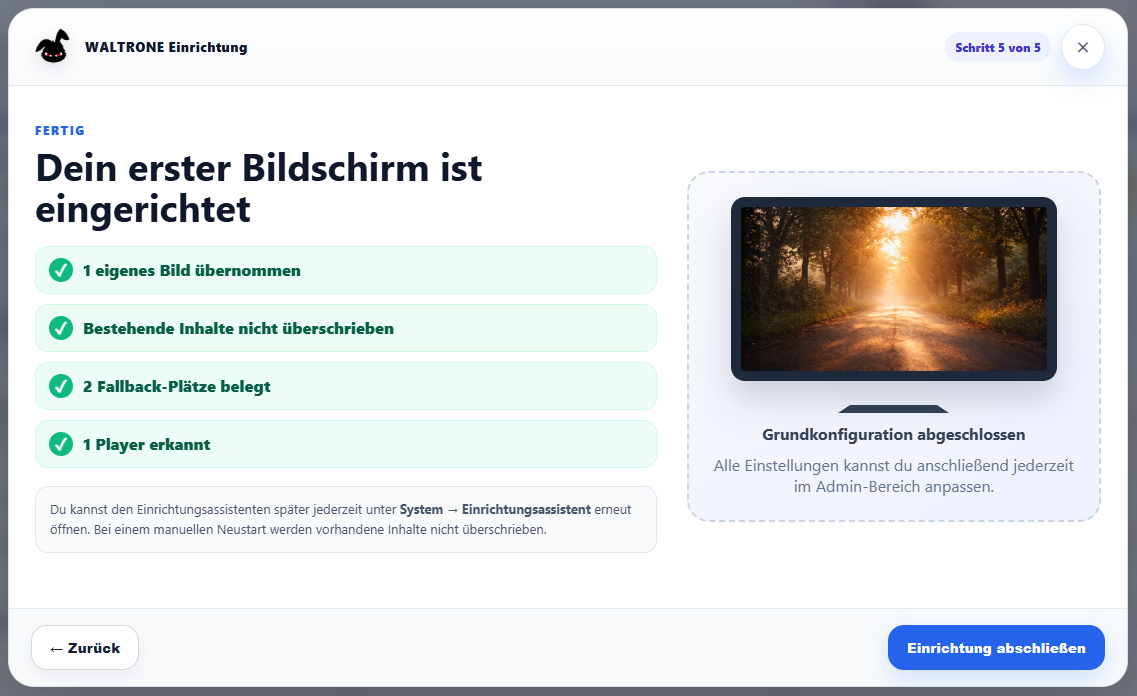
The final page shows a summary. Click Finish setup. You can change everything later in the administration area.
| Standalone | Network Edition | |
|---|---|---|
| Main PC | Plays content itself and manages it. | Manages content and can also control additional PCs. |
| Additional PCs | Not required. | Connected with the WALTRONE Agent. |
| Playlists | Used by the local player. | Can be assigned to different players individually. |