Choose a template and see the result immediately
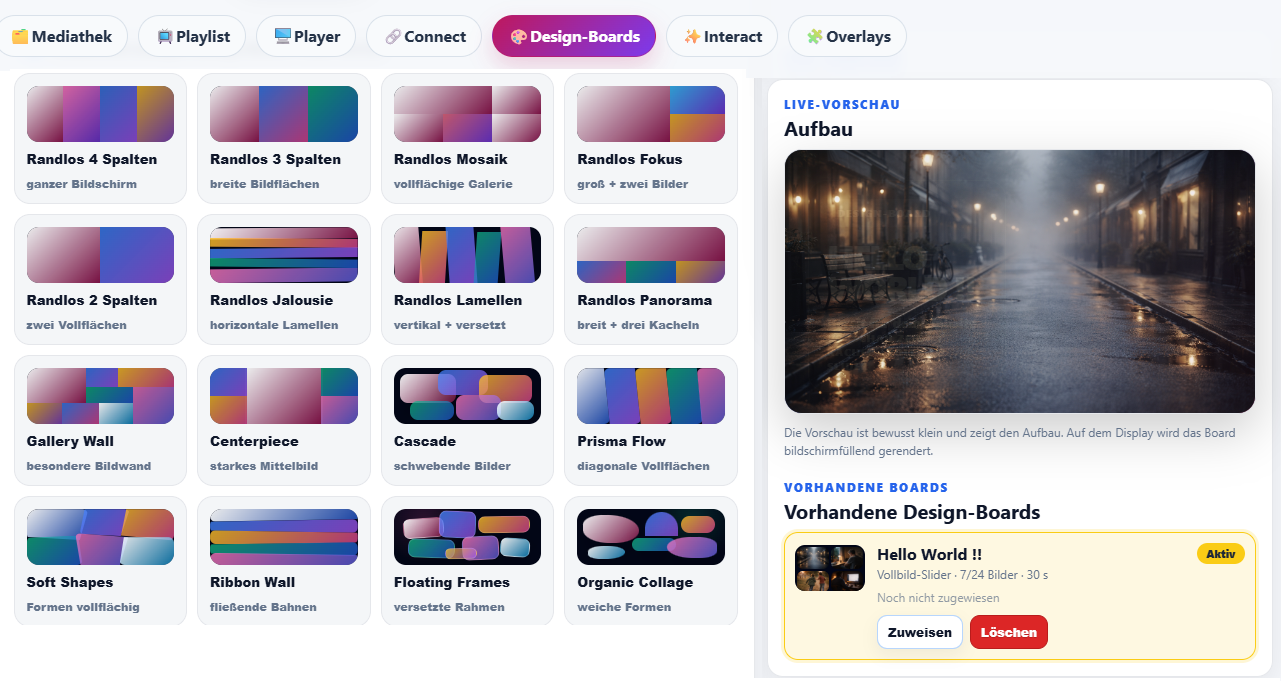
Choose a layout on the left. The live preview on the right shows how the board will approximately look. Under Existing Design Boards, you can manage saved boards and assign them to a slot.
Choose a template, combine images and then use the finished board like normal content.
A Design Board combines several images into one finished layout. Instead of showing only one image at a time, you can create an image wall, mosaic or several simultaneous panels.
A finished Design Board behaves like normal content and can be assigned to a playlist slot.
Choose a layout on the left. The live preview on the right shows how the board will approximately look. Under Existing Design Boards, you can manage saved boards and assign them to a slot.
Mark the images you want to use.
With 1 to 24 selected images, a new board can be created directly.
Pick the shape that best fits your display and your images.
Adjust images or the layout until the result fits.
The board is used in a slot only after you choose Assign.
✓ A new board is not automatically assigned to a slot.
✓ Up to 24 images can be added to one board.
✓ “Random select” can automatically choose suitable images.
✓ Removing an image from a Design Board does not delete the original file from the Media Library.
✓ With only a few images, WALTRONE can reuse them for additional tiles so the layout does not contain empty areas.