
Approve a new Agent
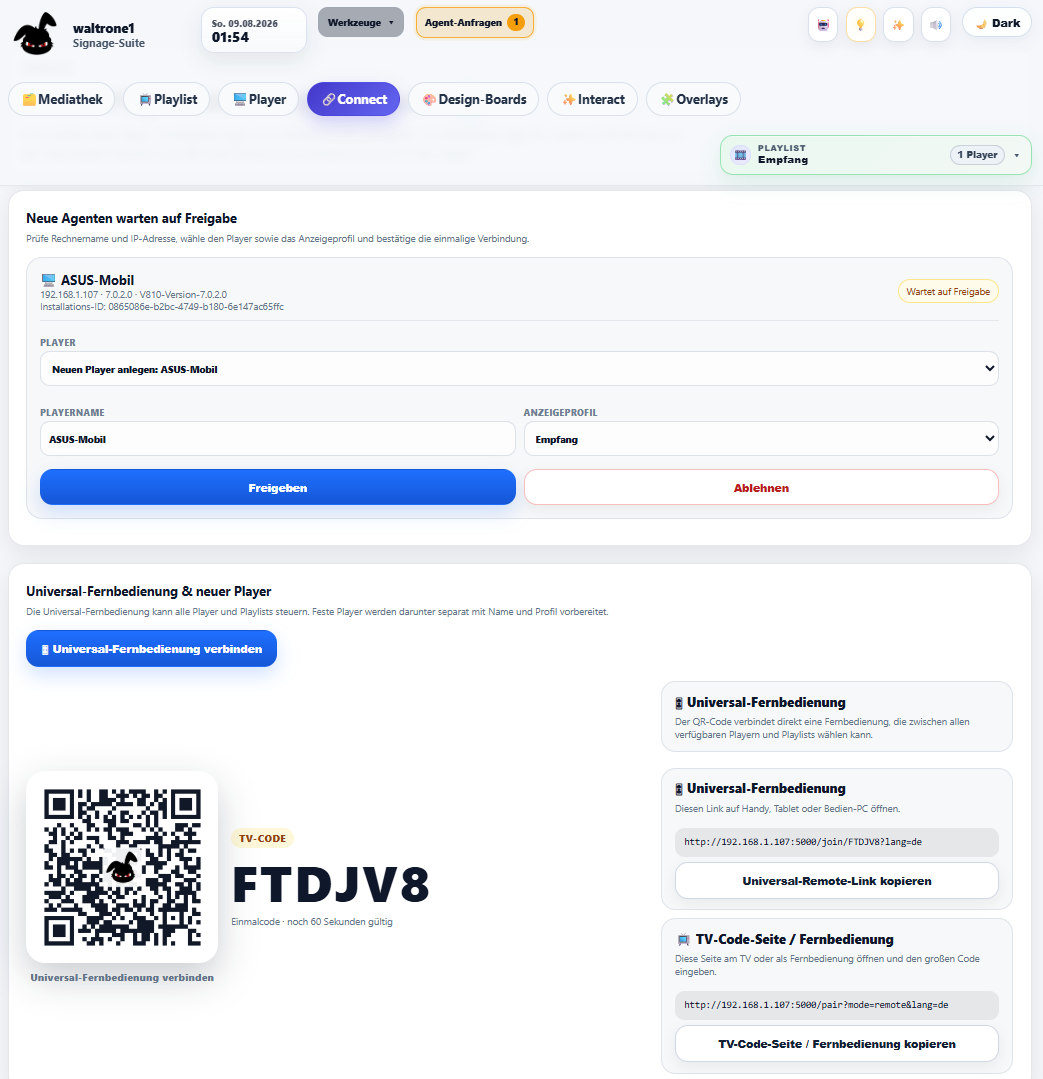
When a new Agent is found on the network, it appears under New Agents waiting for approval.
Check the computer name and IP address, choose the player and display profile, then click Approve.
Approve Agents in the Network Edition and connect phones, tablets or control PCs as remote controls.
Connect is the area for new connections. In the Network Edition, Agent PCs waiting for approval appear here. You also find the Universal Remote for phones, tablets and control PCs.
When a new Agent is found on the network, it appears under New Agents waiting for approval.
Check the computer name and IP address, choose the player and display profile, then click Approve.

Open the generated link or scan the QR code with your smartphone. The mobile interface is designed for quick control while standing near the display.
Click Connect in the WALTRONE top navigation.
WALTRONE displays a QR code and a short TV code.
Scan the QR code or open the displayed link.
You can then switch between available players and playlists.
The remote control provides quick access to selected Overlay functions without exposing every backend design option.